Can't install High Sierra Guest on High Sierra Host

jred55

Junior Member
Hi, has anybody got any ideas as to why I can't seem to create a High Sierra guest (tried both a fresh install and upgrade from sierra)? Both are failing with an error as per the attached.
Not sure if this is associated with the problem but as soon as it reboots to start the upgrade I'm getting the yellow warning triangle to install parallel tools (although they were installed pre-upgrade as a sierra guest!). I also just cloned my original sierra guest to then upgrade it to high sierra.
I'm using Parallels Desktop 13.1.0 on an iMac (27", Mid 2011) upgraded to High Sierra which should be within specs for doing this.
Any help/guidance greatly appreciated. Thanks,
Julian
 

Attachments
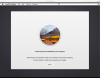
  • Screen Shot 2017-10-13 at 09.13.35.png
    Screen Shot 2017-10-13 at 09.13.35.png
    908.6 KB · Views: 39
Last edited:
I have the same problem - can not install Sierra, nor High Sierra, as guest. Funny thing is that I could install High Sierra Beta so I am using that one a lot.

The problem is that I want to use Parallels for testing purposes and thus is a beta not really useful; is is almost there, feature wise, but it is not something the customers would use.

Any tips as to how I can install Sierra or High Sierra in Parallels would be appreciated. Maxed out latest MacPro 15" running Sierra with latest Parallels installed but, alas, to no avail...
 
I'm getting the same, but I also get the error if I try and install Elcapitan.

My iMac is a late 2013 27inch iMac with a fresh install of Sierra as the host OS.
 
I'm having exactly the same issue. High Sierra host. Brand new 2017 15" MBP maxed out. Sierra and High Sierra guests producing the same issue. Not intermittent. Consistently won't install and gives the exact error in the OP's screen shot.
 
Hello All,
Kindly follow the below steps to install High Sierra as a virtual machine.
> Download the OS High Sierra installation app from AppStore.
Go to Parallels Desktop menu bar -> File -> New...
> Click on "Install Windows or another OS from a DVD or image file", then click Continue.
Check to see if the OS X installation image was automatically detected by the Wizard. If so, click Continue. If the OS X installation image was not automatically detected:
> Open Finder and navigate to the Applications folder.
>Locate the "Install OS High Sierra" application.
>In Parallels Wizard click "Locate manually", then click "Image file".
>Drag and drop the "Install OS High Sierra" app into the Parallels Wizard.
The installation image will be detected. Press Continue.
>A dialog box asking to create the bootable image will appear. Click Continue.
Name the resulting image file and its location, and click Save.
Wait until the disk is created. This may take some time.
Once the bootable image is created, click Continue.
If the virtual machine unexpectedly shuts down, restart it to begin the OS High Sierra
installation.
Continue with the OS High Sierra installation.
Once the OS X is installed, install Parallels Tools.

Thanks
 
Back
Top