I am using Win 7 under Parallels Desktop with Snow Leopard. When I am using a Windows application the Alt key to the left of the space bar works correctly in some applications but the one to the right of the space bar does not. Is there any way to map both Alt keys to be recognized the same way as the one to the left of the space bar?

Install the app
How to install the app on iOS
Follow along with the video below to see how to install our site as a web app on your home screen.
Note: This feature may not be available in some browsers.
You are using an out of date browser. It may not display this or other websites correctly.
You should upgrade or use an alternative browser.
You should upgrade or use an alternative browser.
Alt Keys not recognized as the same
- Thread starter BrooxH
- Start date

kat
Product Expert
Thank you for the suggestion, but either I don't know how to use it or it doesn't work.
Here's the problem. I have a bunch of macros in one of my Windows applications that use the ALT key (e.g., "ALT + .", "ALT + ,", "ALT + /", etc.). When I use the ALT key to the left of the space bar for these, the macros work just fine. But when I use the ALT key to the right of the space bar, the combination results in a keystroke, for instance ALT+. results in an = sign instead of initiating the macro (as happens when I use the other ALT key).
I tried to use the Parallels Keyboard mapping option that you illustrated, but I can't see how to map the right ALT key to perform as the left ALT key does . . . it wants me to give it an ALT plus another key combination to map and it won't even accept "ALT+.".
Here's the problem. I have a bunch of macros in one of my Windows applications that use the ALT key (e.g., "ALT + .", "ALT + ,", "ALT + /", etc.). When I use the ALT key to the left of the space bar for these, the macros work just fine. But when I use the ALT key to the right of the space bar, the combination results in a keystroke, for instance ALT+. results in an = sign instead of initiating the macro (as happens when I use the other ALT key).
I tried to use the Parallels Keyboard mapping option that you illustrated, but I can't see how to map the right ALT key to perform as the left ALT key does . . . it wants me to give it an ALT plus another key combination to map and it won't even accept "ALT+.".
P
Parallels User
The right Alt key in Windows has is a different Alt it's Alt Gr (equal to Ctrl + Alt).
OK . . . that makes sense. Can I unmap the right ALT key so that it isn't ALT GR? If so, how would I do it with Parallels or Windows? I used Windows for a long time but don't remember any keyboard mapping utility (and I was using, primarily Win XP, not Win 7).
Or should I just duplicate my macros so that the respond the same to ALT and ALT GR?
Or should I just duplicate my macros so that the respond the same to ALT and ALT GR?
Inside the VM go to System settings - Language options. There you can manage language profiles. Parallels usually installs its own profile and sets it as standard. In Germany f. ex. it's 'German - Parallels' rather than the 'German' default. Change back to the default and all keys should behave as they would on a native Windows machine. But still - the right ALT has another function than the left one, just as Specimen described. This is Windows, has nothing to do with Parallels. Would be the same on a Windows host machine.
For those looking for the solution to this problem, the answer is to remap option key to Alt in the settings described above. The following blog post explains this step by step: http://slickrabbit.com/parallels-for-mac-right-alt-key-not-working/
I've wasted the majority of my day today talking with a long succession of Parallels support team members. They have never heard of this issue and have no resolution. They did not believe me that this was a configurable keyboard solution 8 years ago. All of their suggestions were crazy brainstorming ideas that were well off the mark of simply remapping the right Alt Key to the value of the left Alt Key. I lost 2 macs to Monterey, had to reinstall macOS and restore my 2 VMs. The only thing that didn't work was the darned right Alt Key. They wanted to install sorts of different Windows drivers and did not believe me that this was a solved problem 7 or 8 years ago. I'm going to plan an exit to VirtualBox or VMWare. I have had it with buying 3 copies of Parallels every year just to keep it working and receiving zero support from them.
This worked!
Parallels Desktop Preferences
Shortcuts>Virtual Machines>Profile: to Generic
this allows for the "alt" key to function normally in Windows environment e.g., "shift + alt + right arrow" to group columns in Excel
Parallels Desktop Preferences
Shortcuts>Virtual Machines>Profile: to Generic
this allows for the "alt" key to function normally in Windows environment e.g., "shift + alt + right arrow" to group columns in Excel
Hi BrooxH
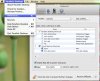
Yes you can change your keyboard short cut for parallels:
go to Parrallels Desktop (top left next to apple icon)
select Preferecens
next select KeyBoard add the keyboard short cut you would like.
See photo
hope this helps
kat