
Multitask Steve
Bit poster
Possible hardware issue? 100% CPU, fragmented graphics.
I use a Mini for mostly home use with a tad of AutoCAD 2013 and Inventor to keep things going inside of Windows 7 Enterprise.
The image, (pvm) recently took a crap and was unbootable. It might have been a poor shutdown or a hardware issue. Not really sure, but here's what's happening. It was a Windows 7 Enterprise version running with the following settings in Parallels. CPU: 2, Memory 8 Gb, and this used to run perfectly and quite fast under those settings.
For some reason it crashed last week and will not repair. The image will also not install without the CPU going to at least 100% or more and getting searing hot.. It gets in a few minutes and stalls. I have uninstalled Parallels, removed the .pvm and tried installing a new image with the same results. I have also tried to install the machine with 1 CPU and 4 Gb Ram and it ran noticeably slower with the same results and heat. Also throttled back the video to no avail.
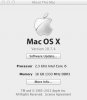
The Mini is current to 10.7.4 and runs great otherwise.. I have another copy of Parallels running on a MBP with the same Windows 7 Ent image and it runs great.
The only thing that I can think of is memory tests on the Mini with a possible bad stick from the heat, but I have run deep tests on all memory with an ok..
I would welcome any suggestions as I can't get any guest OS to install at this point without the heavy CPU loading and stalling.
Thank you in advance.
I use a Mini for mostly home use with a tad of AutoCAD 2013 and Inventor to keep things going inside of Windows 7 Enterprise.
The image, (pvm) recently took a crap and was unbootable. It might have been a poor shutdown or a hardware issue. Not really sure, but here's what's happening. It was a Windows 7 Enterprise version running with the following settings in Parallels. CPU: 2, Memory 8 Gb, and this used to run perfectly and quite fast under those settings.
For some reason it crashed last week and will not repair. The image will also not install without the CPU going to at least 100% or more and getting searing hot.. It gets in a few minutes and stalls. I have uninstalled Parallels, removed the .pvm and tried installing a new image with the same results. I have also tried to install the machine with 1 CPU and 4 Gb Ram and it ran noticeably slower with the same results and heat. Also throttled back the video to no avail.
The Mini is current to 10.7.4 and runs great otherwise.. I have another copy of Parallels running on a MBP with the same Windows 7 Ent image and it runs great.
The only thing that I can think of is memory tests on the Mini with a possible bad stick from the heat, but I have run deep tests on all memory with an ok..
I would welcome any suggestions as I can't get any guest OS to install at this point without the heavy CPU loading and stalling.
Thank you in advance.
Attachments
Last edited: