Show VM OSs/Apps in Contrasting COLOR

IanM23

Bit poster
I am often switching back and forth between native MacOS apps -- and apps running in a Parallels VM (usually Windows). When I have several layers of various apps open, it's momentarily confusing which is running in a VM -- and what is natively. Please provide for the ability to display any app's window frame (running within a Parallels VM, that is) -- in some OTHER (contrasting) color -- than that of native macOS's dark grey. It would add immeasurably to usuability in my view. A simple (if somewhat trivial) Example: if I run Word for Mac, then of course it has nothing to do with Parallels and will display as a standard MacOS app...BUT if I start up Word [for Windows] within my Parallels Windows VM - then it would be great if I have the constant visual reminder via that app's Title Bar being in, say BLUE or Parallels' Dark RED...
 
I am often switching back and forth between native MacOS apps -- and apps running in a Parallels VM (usually Windows). When I have several layers of various apps open, it's momentarily confusing which is running in a VM -- and what is natively. Please provide for the ability to display any app's window frame (running within a Parallels VM, that is) -- in some OTHER (contrasting) color -- than that of native macOS's dark grey. It would add immeasurably to usuability in my view. A simple (if somewhat trivial) Example: if I run Word for Mac, then of course it has nothing to do with Parallels and will display as a standard MacOS app...BUT if I start up Word [for Windows] within my Parallels Windows VM - then it would be great if I have the constant visual reminder via that app's Title Bar being in, say BLUE or Parallels' Dark RED...
Greetings,
Thank you for your feedback.
As a possible solution, please follow the steps below to add a specific color tag to your virtual machine:
1. Open Parallels Desktop > Right-click on the Parallels Icon in the Dock > Control Center
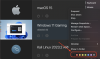
2. Right-click on your Virtual Machine > Select the color you would like to assign to your virtual machine (See attached screenshot).
3. Launch your Virtual Machine > Open File Explorer > You shall see that the color you've chosen will be displayed at the bottom of the Application's icon in the dock.
Thank you!
 

Attachments

  • Screenshot 2024-07-24 at 05.56.52.png
    Screenshot 2024-07-24 at 05.56.52.png
    428.8 KB · Views: 7
Back
Top