[SOLVED] Cannot seem to update display resolution in Windows 10

ChrisJ7

Bit poster
Hi!
I'm pretty new to Parallels so I might just be missing something here. I have installed an eval copy of Windows 10 and the resolution within the system is set to 1024 x 768 and I'm unable to update it in the system preferences. I want to set it up to be the same size as my retina screen or any other external monitor I attach. In Windows Display Preferences, under the adapter type it says I have the "Microsoft Basic Display Adapter" and under Monitor it states that I have the "Generic Non-PnP Monitor".

For you reference here are my MBP specs:

specs.jpg

Any help would be appreciated.

Thanks,
Chris
 
Hi Chris,
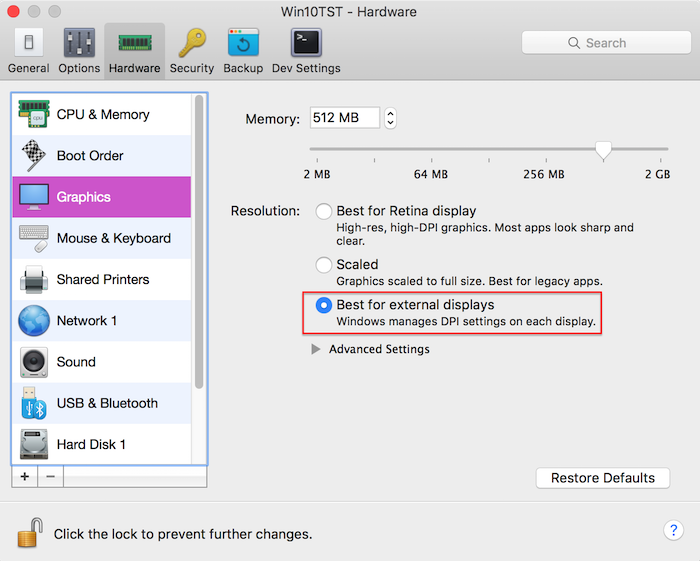
A new option was introduced in Parallels Desktop 12 for Mac to work with the virtual machine on multiple displays with Retina: Best for external displays.
When this option is enabled, Windows manages resolution and DPI settings separately on every display. To enable this option"
Open virtual machine configuration window > Hardware > Graphics.
Set resolution setting to Best for external displays.
Screen%20Shot%202016-08-25%20at%2000.18.04.png

NOTE: Windows will log off to apply the new settings (when running).
 
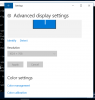
Thanks for your response. I'm actually already using that option. The real issue here is that in windows I can't update my resolution beyond 1024 x 768. See the greyed out portion of the preferences below:

Screen Shot 2017-02-09 at 2.49.18 AM.png

It seems to think that the Virtual Display is only at 1024 x 768 and won't let me update this for some reason. Would you happen to know if anything can be done in Parallels so that it recognizes the actual sizes of my display? The problem is that when I'm running in full screen (or windowed mode) it doesn't utilize all of my screen as there are black bars on the side of this square-ish screen ratio, where as my display is Widescreen like most modern displays.

Thanks,
Chris

Hi Chris,
A new option was introduced in Parallels Desktop 12 for Mac to work with the virtual machine on multiple displays with Retina: Best for external displays.
When this option is enabled, Windows manages resolution and DPI settings separately on every display. To enable this option"
Open virtual machine configuration window > Hardware > Graphics.
Set resolution setting to Best for external displays.
Screen%20Shot%202016-08-25%20at%2000.18.04.png

NOTE: Windows will log off to apply the new settings (when running).
 
Last edited:
Is anyone else having this issue with any form of Retina MacBook Pro with an Eval Copy of Windows 10? I can't seem to find a solution anywhere on the net. It runs fine but because of the resolution everything has a blurry feel to it. Would this be an issue with Parallels or the fact that I have an Evaluation copy of Windows 10?

Thanks.
 
Hello all who are reading this. Thanks to a friend this problem has finally been resolved. While the VM is open go to the top bar on your Mac and go to Actions > Install Parallels Tools. Seems like this synced my Mac with the VM and I was able to select the proper resolution to get widescreen and less blurriness overall.

Chris J.
 
Hello all who are reading this. Thanks to a friend this problem has finally been resolved. While the VM is open go to the top bar on your Mac and go to Actions > Install Parallels Tools. Seems like this synced my Mac with the VM and I was able to select the proper resolution to get widescreen and less blurriness overall.

Chris J.
Hello Chris, Please try this article and keep us posted.
 
Back
Top