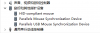
Logitech mouse G502 in Windows response slow

WangBing

Bit poster
My mouse is Logitech G502.
My Parallels version is 12.0.2 (41353)
The Guest OS is Windows 10 and windows 7
macOS Sierra

The mouse G502 in the guest system responses slow.
I use the mac touchpad is normal.
In the PD version 11, G502 is normal.

video: G502 slow.mov
touchpad normal.mov

Thank you.
 

Attachments

  • 屏幕截图 2016-10-21 时间 下午2.20.46.png
    屏幕截图 2016-10-21 时间 下午2.20.46.png
    24.8 KB · Views: 0
Hey, did you try to reinstall Parallels Tools and check the issue?

Hello, Thank you for the reply.
I tried reinstall the Parallels Tools. The problem is the same.
I use PD ver 11 before, everything is normal.
But in ver 12. My G502 mouse looks abnormal.
I change another mouse (general mouse for dell). It's quite ok. It seems only happened to my G502.
I don't have Logitech mouse else, I don't know if it happens on other Logitech mouse.
G502 does not match Parallels simulated mouse driver?

Thank you again.
 
Hello, Thank you for the reply.
I tried reinstall the Parallels Tools. The problem is the same.
I use PD ver 11 before, everything is normal.
But in ver 12. My G502 mouse looks abnormal.
I change another mouse (general mouse for dell). It's quite ok. It seems only happened to my G502.
I don't have Logitech mouse else, I don't know if it happens on other Logitech mouse.
G502 does not match Parallels simulated mouse driver?

Thank you again.
Hello WangBing, hope it shouldn't be a problem with Parallels Desktop 12.
Please give it a try with a different Logitech mouse and let us if that makes any difference.
 
Hello WangBing, hope it shouldn't be a problem with Parallels Desktop 12.
Please give it a try with a different Logitech mouse and let us if that makes any difference.

Unfortunately, I use G700s with USB cable of my friend. It's the same with my G502.
Perhaps it's the same with all Logitech mouse?
Please check this.
Thank you.
 
Just got an update from support. This fixed my problem:

1. Right-click on the virtual machine name in Control Center and click Configure...
2. Go to Hardware tab and open Boot order menu.
3. In this menu go to Advanced Settings and add Boot Flag in the field:

devices.usb.mouse=0
 
Just got an update from support. This fixed my problem:

1. Right-click on the virtual machine name in Control Center and click Configure...
2. Go to Hardware tab and open Boot order menu.
3. In this menu go to Advanced Settings and add Boot Flag in the field:

devices.usb.mouse=0
It works. Thank you.
But why must use this?
 
I do not know. I asked support whether there is a downside to this command to which they replied:
There is no downside of this command.
In short, this command allows virtual machine to get the access to the mouse and grab it regardless Parallels Tools presence or absence.
 
Back
Top