Extend virtual hard disk

Hanlif

Bit poster
Hi,

under Parallels 7 I'd like to install a software (Star Wars The Old Republic), but it doesn't work. In the middle of the installation process suddenly the installer stops and vanishes. As it says, the game needs 14,9 GB on the hard disk, but there are only 8 GB virtual space available.
On the real hard disk under Mac OS X there are 400 GB available.

As far as I know formerly this could be handled by Image tools. But Image tools have been removed since Parallels vs. 5. So, is there another way to extend the virtual hard disk?

Thanks,

Hanlif
 
Last edited:
Hi Hanlif,
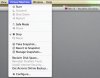
Select your vm, then navigate to Virtual Machine (along the top near the apple logo)

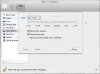
Select configure>Hard Disk>Edit (you can change your hard disk to expanding disk)

attachment.php


You just need to make sure you don't give the vm all your Hard drive space.
 

Attachments

  • screen-capture-3.jpg
    screen-capture-3.jpg
    46 KB · Views: 6
  • screen-capture-32.jpg
    screen-capture-32.jpg
    72 KB · Views: 24
@kat,

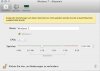
thanks, but please take a look at the attachment. The yellow box says that some of the options are turned off as long as the vm is turned on.
But when I turn off the vm, I don't have the option to navigate to the editing box ...

???
 

Attachments

  • NoWay.jpg
    NoWay.jpg
    10.2 KB · Views: 7
Hi Hanlif,

Select your virtual machine but do not start it/turn it on. You will then be able to edit configuration.
If you are using coherence exit it then turn the vm off.

Also please see Speciman post about extending the file system.
 
Last edited:
Hi kat,

yes, thanks, I will follow Speciman's hints too, but I understand this is the second step after having increased the virtual hd size.

Unfortunately I am still stuck in step 1. I tried to select the Virtual Machine
- in Finder: The top shows the Finder menue.
- in Applications: VM starts.

What am I missing?

EDIT Sorry, I got it. I had to deactivate the option "Start Windows Immediately" first.

@Specimen
Thanks for the link. Luckily it was not necessary to follow the instructions there - the Extend option is greyed out, but Windows had accepted the extended storage size already.

Thanks to you both.
 
Last edited:
Back
Top