
Basil.Bourque
Junior Member
See my Answer on Stack Overflow in the last section labeled "Bug" .
Laptop Closed
I have encountered a bug where after adjusting for Retina, when using the VM on an external monitor (not Retina) the resulting image is shrunken, not re-scaled for non-Retina. So text and graphics are squished with too few pixels to represent their true detail.
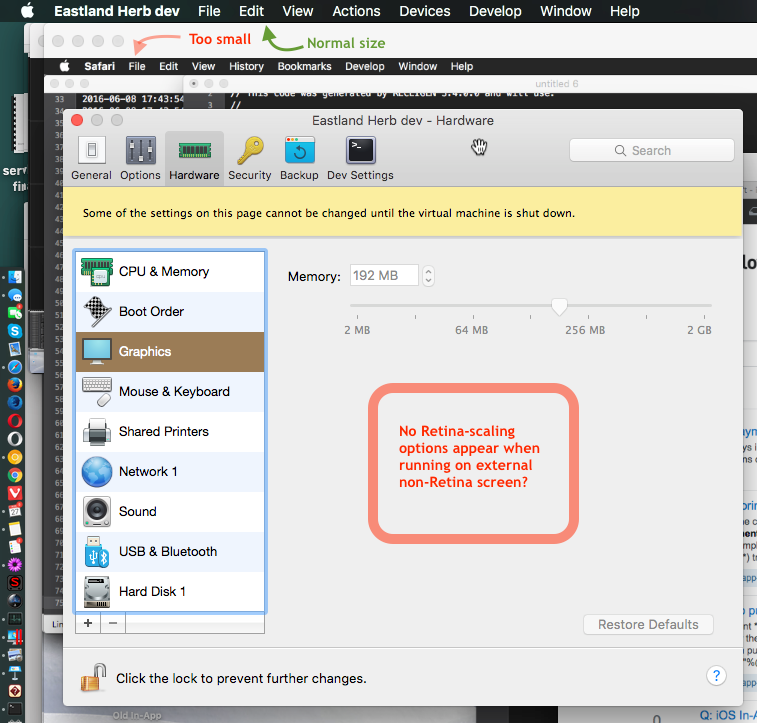
See the following screen shot of part of screen when running Parallels 12.0.1 on an external monitor. The monitor is a plain full-HD Acer brand monitor, non-Retina. Notice how the Apple logo on the menu bar is smaller than the Apple logo on the host Mac, and the menu labels too are shrunken.
While on the non-Retina screen, the scaling options disappear. So I cannot find a way to return to conventional scaling within the VM.
See the red text "Too small" and green text "Normal size" in this screen shot noting the difference in scaling of the host and guest mac. Both host and guest are El Capitan macOS 10.11.6.
Laptop open
When I open the laptop with the external non-Retina monitor attached, the middle option "Best for Retina display" fails, instead acting as the first option with everything teeny-tiny, apparently using physical pixels as logical pixels.
Laptop open does provide a workaround to the "Laptop Closed" problem described above. (1) Move VM window back to Retina laptop monitor, access configuration, click third option "Scaled", move VM window back to external monitor. (2) Close laptop.
Laptop Closed
I have encountered a bug where after adjusting for Retina, when using the VM on an external monitor (not Retina) the resulting image is shrunken, not re-scaled for non-Retina. So text and graphics are squished with too few pixels to represent their true detail.
See the following screen shot of part of screen when running Parallels 12.0.1 on an external monitor. The monitor is a plain full-HD Acer brand monitor, non-Retina. Notice how the Apple logo on the menu bar is smaller than the Apple logo on the host Mac, and the menu labels too are shrunken.
While on the non-Retina screen, the scaling options disappear. So I cannot find a way to return to conventional scaling within the VM.
See the red text "Too small" and green text "Normal size" in this screen shot noting the difference in scaling of the host and guest mac. Both host and guest are El Capitan macOS 10.11.6.
Laptop open
When I open the laptop with the external non-Retina monitor attached, the middle option "Best for Retina display" fails, instead acting as the first option with everything teeny-tiny, apparently using physical pixels as logical pixels.
Laptop open does provide a workaround to the "Laptop Closed" problem described above. (1) Move VM window back to Retina laptop monitor, access configuration, click third option "Scaled", move VM window back to external monitor. (2) Close laptop.