
Install the app
How to install the app on iOS
Follow along with the video below to see how to install our site as a web app on your home screen.
Note: This feature may not be available in some browsers.
You are using an out of date browser. It may not display this or other websites correctly.
You should upgrade or use an alternative browser.
You should upgrade or use an alternative browser.
How to update Windows 11 to version 24H2
- Thread starter KarlN2
- Start date
-
- Tags
- windows update


After you did the GPEDIT, rebooted the VM, then ran system update, did it show you the option of 24H2?
And what do you see in your update history? Do you find 24H2 there?
I am not sure if this is an option for you, depending what Windows programs you already have installed, I also created a brand new W11 VM using the option to download Windows from within P19, and it downloaded 24H2. If this is an option for you, you could move your Windows programs to this new VM.
And what do you see in your update history? Do you find 24H2 there?
I am not sure if this is an option for you, depending what Windows programs you already have installed, I also created a brand new W11 VM using the option to download Windows from within P19, and it downloaded 24H2. If this is an option for you, you could move your Windows programs to this new VM.
My machine won't run GPEDIT - says it doesn't exist. I'm on Home edition and still stuck on 22H2. Can anyone help me? I'm not very Windows literate so posring code in cmd lines and all that malarkey doesn't help me. I tried downloading an iso and installing that but the option to save apps and personal files is greyed out. If I install as a new VM will I have to migrate my Windows licence to the new VM?
I had the same problem with one of my Windows VMs.
I found some group policy commands here in the forum that resolve the issue for me.
1) in the search box type GPEDIT, on the top open group Administrative Templates, then Windows Components, scroll down to Windows Updates, then Manage updates offered from Windows update
2) On the right use Select target Feature Update version
3) On the popup select radio button Enables, then enter Windows 11 (with the space) in the first fielld, and 24H2 in field Target Version, then click Apply
4) I also enabled Disable safeguards for Feature Updates, but was not sure if I needed it.
5) close the windows
6) in the search box enter GPUPDATE /force, when it is done shut down the VM and restart again
No run system update again and check if you get the 24H2 update
This works - thank you. I have to ask though - WHY does this need to be done? Why does Parallels seemingly block Windows updates via group policy when configuring Windows? Or is this a purely Windows thing?
I had the same problem with one of my Windows VMs.
I found some group policy commands here in the forum that resolve the issue for me.
1) in the search box type GPEDIT, on the top open group Administrative Templates, then Windows Components, scroll down to Windows Updates, then Manage updates offered from Windows update
2) On the right use Select target Feature Update version
3) On the popup select radio button Enables, then enter Windows 11 (with the space) in the first fielld, and 24H2 in field Target Version, then click Apply
4) I also enabled Disable safeguards for Feature Updates, but was not sure if I needed it.
5) close the windows
6) in the search box enter GPUPDATE /force, when it is done shut down the VM and restart again
Now run system update again and check if you get the 24H2 update
Many thanks - this solved the problem for me.
If you have not tried yet, you might want to try the RedEdit option.
I just did that on my German VM which was on 24H2.
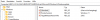
I had to create the Windowsupdate key first, then I added Productversion as text, and last TargetReleaseVersionInfo as text, rebooted the VM, then did the system update and sure got 25H2 offered.
I had not added the text "TargetReleaseVersion"=dword:00000001 as mentioned in #7.
I just did that on my German VM which was on 24H2.
I had to create the Windowsupdate key first, then I added Productversion as text, and last TargetReleaseVersionInfo as text, rebooted the VM, then did the system update and sure got 25H2 offered.
I had not added the text "TargetReleaseVersion"=dword:00000001 as mentioned in #7.

RobertC51
Member
Thanks, but I've tried this and it still doesn't update. It gets to about 25%and fails.If you have not tried yet, you might want to try the RedEdit option.
I just did that on my German VM which was on 24H2.
View attachment 23946
I had to create the Windowsupdate key first, then I added Productversion as text, and last TargetReleaseVersionInfo as text, rebooted the VM, then did the system update and sure got 25H2 offered.
I had not added the text "TargetReleaseVersion"=dword:00000001 as mentioned in #7.
RobertC51
Member
Yes well, I have one that works fine and one that doesn't.I do not know why others are having issues, but both of my Windows 11 virtual machines are now 25H2.

JamesF23
Hunter
That really speaks to the unreliability of Windows.Yes well, I have one that works fine and one that doesn't.
JamesF23
Hunter
I do not remember you trying, but you can download the ISO from Microsoft and maybe perform an in place upgrade to the latest version.Thanks, but either way I can't find a solution to being able to just reinstall the VM without trashing everything.
Thank you very much for this. I was stuck on 21H2, important software I was using wasn't working correctly and kept crashing. Used your guide and I'm now running 25H2, soon to be 26H2 and the software is working fine again. Cheers.I had the same problem with one of my Windows VMs.
I found some group policy commands here in the forum that resolve the issue for me.
1) in the search box type GPEDIT, on the top open group Administrative Templates, then Windows Components, scroll down to Windows Updates, then Manage updates offered from Windows update
2) On the right use Select target Feature Update version
3) On the popup select radio button Enables, then enter Windows 11 (with the space) in the first fielld, and 24H2 in field Target Version, then click Apply
4) I also enabled Disable safeguards for Feature Updates, but was not sure if I needed it.
5) close the windows
6) in the search box enter GPUPDATE /force, when it is done shut down the VM and restart again
No run system update again and check if you get the 24H2 update