Is VM files created on Intel Mac workable on a new Mac with M chip?

ZhiyongS

Bit poster
Hello, I have created and used a few VMs on previous versions of PD on an 2012 iMac 27 (you could say that I am trying to squeeze the most out my Mac purchase:), they are win7, win10 VMs of various configurations and software installations.

Now I no longer have my Intel Mac, but I still have all the VMs I've created and used. I am considering a new Mac, which of course have to be one with M chip.

Will the newest version of PD on the M chip Mac recognize all my previous VMs from Intel Mac? What should I pay attention, or plan, for such a purchase? Thank you very much for your kind help here!!
 
You'll have to manually connect any of the old vHDD files to a new VM in order to retrieve the files inside. You won't be able to load the existing VM on the new Mac.
 
Hello, I have created and used a few VMs on previous versions of PD on an 2012 iMac 27 (you could say that I am trying to squeeze the most out my Mac purchase:), they are win7, win10 VMs of various configurations and software installations.

Now I no longer have my Intel Mac, but I still have all the VMs I've created and used. I am considering a new Mac, which of course have to be one with M chip.

Will the newest version of PD on the M chip Mac recognize all my previous VMs from Intel Mac? What should I pay attention, or plan, for such a purchase? Thank you very much for your kind help here!!

Hello @ZhiyongS
An Intel-based virtual machine (VM) cannot be started on a new Mac with Apple M-Series chips because it is not compatible with Mac computers equipped with the Apple M-Series chip.
However, you can transfer your data from an Intel-based VM to an Arm-based VM.
Please follow these steps to transfer your data:
1. Click the Parallels icon (||) on the top menu bar > Control Center.
2. Right-click the virtual machine > select Show Hard Disk Contents...
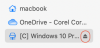
3. A new Finder window will be opened with contents stored on the virtual hard drive:
4. Select the required disk where your data is stored.
5. Copy the data and paste it to a folder on a Mac (you can share it with the ARM-based virtual machine later) or to an external drive.
6. Once you finish copying the data, eject the disks from Finder:
Screenshot 2021-03-18 at 10.43.21.png
You can find more information here.
Regards,
 
Back
Top