OSX Leopard Server Guest - Can't Increase Hard Drive Size

Shane Gore

Junior Member
Hello all,

I need an install of OS X Leopard to test some software. Since Parallels won't let me use Leopard, I have to use Leopard Server. This software is over 60 GB in size but Parallels won't let me create anything larger than a 64 GB hard drive. The drive slider doesn't move (greyed out) , and I can't type a new hard drive size either. How can I fix this?

I'm running Parallels 9 in Yosemite.

Thanks.
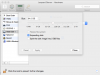
Screen Shot 2014-11-27 at 8.49.46 PM.png
 
What do you mean by the software being over 60 GB?
A clean install of the said OS is a sixth of that, the install media is a DVD.

Likely reasons to be greyed out: the VM is running or suspended, there's not enough room in the real disk.
 
What do you mean by the software being over 60 GB?
I think he was talking about total amount of data he wants to put onto the VM. I also wanted to put a lot on, more than the 64 GB. I found a solution that was given in another post. When creating a new VM, check the box to customize settings before installation. In the configuration, delete the 64 GB hard drive which can't be resized (minus sign). Then add a new device (plus sign) that is an expanding hard drive, complete installation, and you are good to go. I can't understand why a new hard drive can be resized, but the default one can't. Also, beware. It appears that the drive space is only expanding. That is, it keeps getting bigger. Compression doesn't seem to be available for Mac guest hosts, so you can't reclaim unused space.
 
Last edited:
Likely reasons to be greyed out: the VM is running or suspended, there's not enough room in the real disk.

Just so you understand, when you create a new VM with a Mac OS as the guest, the hard disk is set at 64 GB and CAN'T be changed bigger or smaller. Try to create a new VM (if you don't have an install image, just check the box for continue without a source and in the next window choose Mac OS X as the operating system) and check the box to customize settings before installation. Then proceed and notice that the default hard drive in the configuration is set as an expanding 64 GB drive and you can't change the 64. The slider doesn't work and you can't modify the number in the box.
 
I think he was talking about total amount of data he wants to put onto the VM. I also wanted to put a lot on, more than the 64 GB. I found a solution that was given in another post. When creating a new VM, check the box to customize settings before installation. In the configuration, delete the 64 GB hard drive which can't be resized (minus sign). Then add a new device (plus sign) that is an expanding hard drive, complete installation, and you are good to go. I can't understand why a new hard drive can be resized, but the default one can't. Also, beware. It appears that the drive space is only expanding. That is, it keeps getting bigger. Compression doesn't seem to be available for Mac guest hosts, so you can't reclaim unused space.
I suggest you submit a Problem Report.
 
Back
Top