
Install the app
How to install the app on iOS
Follow along with the video below to see how to install our site as a web app on your home screen.
Note: This feature may not be available in some browsers.
You are using an out of date browser. It may not display this or other websites correctly.
You should upgrade or use an alternative browser.
You should upgrade or use an alternative browser.
Prevent Parallels from launching when opening a file
- Thread starter martin26
- Start date

Maria@Parallels
Problem solver
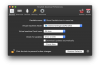
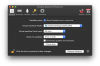
Hi, please check settings at Parallels Desktop -> Preferences -> General -> un tick Star Parallels as a service.
Also please check the virtual machine settings: VM configuration -> Option -> Start up and shut down -> choose at "Start automatically" Never and check the issue.
Let us know how does it work for you.
Also please check the virtual machine settings: VM configuration -> Option -> Start up and shut down -> choose at "Start automatically" Never and check the issue.
Let us know how does it work for you.
Maria@Parallels
Problem solver
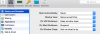

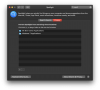
I can't add the windows icon here. It appears inactive when I click on +I figured out a way for Mac not to suggest any windows apps when using spotlight. This solved the issue.
View attachment 15666
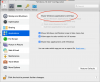
I found an alternative to disabling that feature. Sometimes it is nice for parallels to open a Windows only file but I hate when it opens a file and it tries to load Windows when it could have just opended with an Mac app.
SOLUTION: Just require a password to change VM states. This was you can just press cancel if the file opens with the wrong app and use the Open With.. option from the option menu to select the Mac app you want to open the file with. (Be sure to set the app as the default for that file type too.)
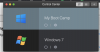
1. Enable "Require password to: Change virtual machine state from "My Boot Camp"/"Windows 10" Configuration > Security.

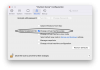
When your Mac tries to open a file for windows you need to type your login password or it will not start. if you didn't mean to use Windows just press cancel and no funny business trying to stop windows from taking over your Mac.
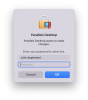
OPTIONAL: Change your file's association to prevent the issue from occuringin the future.
1. locate the file that causes the Mac to open Windows unexpectedly and use the "Open With..." option from the option menu.
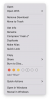
2. Select Other... so you can choose a new default app to open the file.
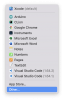
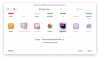
3. Enable "Always Open With" then select the app you want to use for the file and select it from the Application folder.
The previously desribed method from the earlier post is what I tried initially. However, it will stop this behavior for all apps; even ones that can only be opened in Windows. I find it easier to confirm that I want to open a Windows file by typing my password instead.
SOLUTION: Just require a password to change VM states. This was you can just press cancel if the file opens with the wrong app and use the Open With.. option from the option menu to select the Mac app you want to open the file with. (Be sure to set the app as the default for that file type too.)
1. Enable "Require password to: Change virtual machine state from "My Boot Camp"/"Windows 10" Configuration > Security.
When your Mac tries to open a file for windows you need to type your login password or it will not start. if you didn't mean to use Windows just press cancel and no funny business trying to stop windows from taking over your Mac.
OPTIONAL: Change your file's association to prevent the issue from occuringin the future.
1. locate the file that causes the Mac to open Windows unexpectedly and use the "Open With..." option from the option menu.
2. Select Other... so you can choose a new default app to open the file.
3. Enable "Always Open With" then select the app you want to use for the file and select it from the Application folder.
The previously desribed method from the earlier post is what I tried initially. However, it will stop this behavior for all apps; even ones that can only be opened in Windows. I find it easier to confirm that I want to open a Windows file by typing my password instead.
yes, this screen has changed and the option is removed.Sorry for the delay guys,
did you set up start up to "never" in VM configuration?
You can resolve the issue by right-clicking on the specific file type on your Mac and choosing "Get Info."
Then, under "Open with" change the default application by selecting an app from your macOS and clicking "Change All...".
This will ensure that this file type always opens on your macOS and not in Parallels.
Repeat these steps for all problematic file types.
Then, under "Open with" change the default application by selecting an app from your macOS and clicking "Change All...".
This will ensure that this file type always opens on your macOS and not in Parallels.
Repeat these steps for all problematic file types.