
Install the app
How to install the app on iOS
Follow along with the video below to see how to install our site as a web app on your home screen.
Note: This feature may not be available in some browsers.
You are using an out of date browser. It may not display this or other websites correctly.
You should upgrade or use an alternative browser.
You should upgrade or use an alternative browser.
Stop auto starting parallels VM
- Thread starter Lee4
- Start date

Maria@Parallels
Problem solver
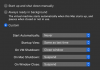
Please go to VM configuration -> choose Option -> Startup and shut down -> and choose "never" at the "Start automatically" option.
Maria@Parallels
Problem solver
@Lee4, could you generate the tech report after the issue reproduced and post the report's ID here.
Maria@Parallels
Problem solver
Hello, did you try to reinstall Parallels Tools and check the issue?Was this ever resolved? I am plagued with the same issue, no matter what setting i chose it auto starts my windows VM on bootup. Currently using Parallels 16 and OSX Big Sur
ParallelsU635
Bit poster
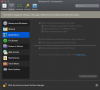
For anyone who came here via Google, the behavior Lee4 is describing has nothing to do with VM auto start settings. It's caused by app sharing. Open the VM settings, and click on "Applications" in the side pane. The top setting on that panel is "Share Windows applications with Mac". For some utterly inexplicable reason, turning this on makes *every file on mac that can possibly be opened in Windows default to being opened in Windows* and that automatically launches the VM whether you have auto start turned off or not.
I mean good gosh, who thought that would be a good idea? The setting literally overwrites all your default app associations and replaces them with Windows equivalents. On a mac. We're talking *mp4* files for example. Sadly, running the Windows VM in coherence mode requires that setting to be on. But I don't understand why you can't "share" Windows apps with OS X *without* automatically making those Windows apps the *default* choice for file associations. Parallels: please stop.
I mean good gosh, who thought that would be a good idea? The setting literally overwrites all your default app associations and replaces them with Windows equivalents. On a mac. We're talking *mp4* files for example. Sadly, running the Windows VM in coherence mode requires that setting to be on. But I don't understand why you can't "share" Windows apps with OS X *without* automatically making those Windows apps the *default* choice for file associations. Parallels: please stop.
For anyone who came here via Google, the behavior Lee4 is describing has nothing to do with VM auto start settings. It's caused by app sharing. Open the VM settings, and click on "Applications" in the side pane. The top setting on that panel is "Share Windows applications with Mac". For some utterly inexplicable reason, turning this on makes *every file on mac that can possibly be opened in Windows default to being opened in Windows* and that automatically launches the VM whether you have auto start turned off or not.
I mean good gosh, who thought that would be a good idea? The setting literally overwrites all your default app associations and replaces them with Windows equivalents. On a mac. We're talking *mp4* files for example. Sadly, running the Windows VM in coherence mode requires that setting to be on. But I don't understand why you can't "share" Windows apps with OS X *without* automatically making those Windows apps the *default* choice for file associations. Parallels: please stop.
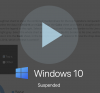
I'm happy that I'm not the only Mac user who was experiencing this (misery loves company, eh?), and was very happy to see this post, as I began to believe there was a remedy at hand. But alas, I'm not even allowed to change the settings. Even when I click on the padlock, and enter my password, everything is still grayed-out.
So, I do what I'm told - resume the virtual machine, and shut it down. I start it up again, and I get back to this, infinite-loop style.
Still, I appreciate your post, and the effort you made to determine the root cause. I just have to accept that the VM will always start when I boot up.
Attachments
I'm happy that I'm not the only Mac user who was experiencing this (misery loves company, eh?), and was very happy to see this post, as I began to believe there was a remedy at hand. But alas, I'm not even allowed to change the settings. Even when I click on the padlock, and enter my password, everything is still grayed-out.
So, I do what I'm told - resume the virtual machine, and shut it down. I start it up again, and I get back to this, infinite-loop style.
Still, I appreciate your post, and the effort you made to determine the root cause. I just have to accept that the VM will always start when I boot up.
View attachment 17708
Thanks probably because you vm is probably running. Also stop sharing winows volumes with mac. And stop sharing icloud and cloud directoring with windows.