
Install the app
How to install the app on iOS
Follow along with the video below to see how to install our site as a web app on your home screen.
Note: This feature may not be available in some browsers.
You are using an out of date browser. It may not display this or other websites correctly.
You should upgrade or use an alternative browser.
You should upgrade or use an alternative browser.
Unable to install Parallel Tools on openSUSE 11.2
- Thread starter AngelicaP
- Start date
Same problem
Even after installing all the appropriate kernels, PT still won't install. Here is what I have tried so far, without success. I have not yet succeeded in reaching anyone at Nova who can help.
This is what I found the last time I looked at this forum:
http://forum.parallels.com/showthread.php?t=96068
I have tried repeatedly to install Parallels Tools in my OpenSuse 11.2 VM without success.
I followed the instructions shown in the forum as above,
This is what I experienced doing the above:
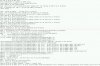
I do have a screen shot of the error log, attached as a JPG.
Like Angelica, I would like to get this resolved so I can make full use of the Linux VM. Right now, although it runs, I cannot resize the window, copy/paste, or even release the cursor, which is pretty basic stuff.
Even after installing all the appropriate kernels, PT still won't install. Here is what I have tried so far, without success. I have not yet succeeded in reaching anyone at Nova who can help.
This is what I found the last time I looked at this forum:
http://forum.parallels.com/showthread.php?t=96068
I have tried repeatedly to install Parallels Tools in my OpenSuse 11.2 VM without success.
I followed the instructions shown in the forum as above,
1. Clean install of OpenSuSe 11.2
2. At the installation settings screen chose Software. Install the following groups:
- Base Development
- Linux Kernel Development
3. Finish installation
4. Mount Parellels Tools ISO with option "-o exec"
5. Install the tools
6. Enjoy!
Nov 14, 2009, 12:43 PM
MapuM
Problem solved:
I just needed to install kernel-desktop(or your kernel type)-devel via "install software"
Nov 15, 2009, 06:01 AM
KaiW
After the inst. kernel-desktop-devil, the inst. of the Tools runs normal...
This is what I experienced doing the above:
I cannot get Tools for Parallels build 4.0.3846 to work on my Macbook Pro running OS 10.6.2. I have installed OpenSuse 11.2 (2.6.31.8-0.1.1.i586) in the VM, and that works fine, but although I have all of the requisite kernel packages installed, and Tools seems to think it's installed, none of the functions it is supposed to support (window sizing, seamless cursor transfer, copy/paste etc.) work. I still see the message to press Ctrl-Alt to release the cursor (this doesn't work on my system, and I have to use Ctrl-tab to change windows and then return to the VM to free the cursor). I have run install umpteen times, always ending with an error message when it apparently tries to download additional software, which fails. In my most recent attempt at installation (which is also the update method according to the instructions), I got a message indicating that PT is installed and asking me to choose update or remove. I have tried both, without success. After my most recent attempt at an update, I get a detailed error list in the error log, which of course I cannot copy and paste into this browser window on my Macbook because PT isn't working!
I do have a screen shot of the error log, attached as a JPG.
Like Angelica, I would like to get this resolved so I can make full use of the Linux VM. Right now, although it runs, I cannot resize the window, copy/paste, or even release the cursor, which is pretty basic stuff.
Attachments
woodcreeper
Bit poster
not sure if it will be the fix you need, but I had problems on Fedora 12, and the new Parallels 5 build solved it. Check and see if your version is up to date. Good Luck!
I finally managed to install the tools after installing kernel-desktop-devel. Yet, like Sidney none of the features work (window resize, cursor transfer, etc.). But, even more amusing, the active window of my openSUSE VM became 800x600, and there is no way of resizing it!!!
I do have the latest version of Parallels 5...
I do have the latest version of Parallels 5...
woodcreeper
Bit poster
Try upping your ram for your Linux VM. I did that and then the full-screen option worked, so I assume there's some self-imposed restrictions based on memory availability.
Post Parallels Tools Installation Display Decrease in Size
I have a Macbook Pro 2.66GHz. 4GB RAM, 15" display. Installed openSUSE 11.2 and at first could not get Parallels Tools to install. After installing kernel-desktop-devel per this forum, PT installed but the display did decrease in size. I increased the amount of RAM to the maximum recommended and could drag the window to a maximum size 1031x749 which is much less than it was prior to installation of Parallels Tools. I have a snapshot of the virtual machine prior to installation of PT and will go back to it until this problem with PT is resolved.
I have a Macbook Pro 2.66GHz. 4GB RAM, 15" display. Installed openSUSE 11.2 and at first could not get Parallels Tools to install. After installing kernel-desktop-devel per this forum, PT installed but the display did decrease in size. I increased the amount of RAM to the maximum recommended and could drag the window to a maximum size 1031x749 which is much less than it was prior to installation of Parallels Tools. I have a snapshot of the virtual machine prior to installation of PT and will go back to it until this problem with PT is resolved.
I also received error message that kernel-source was not found. Read this forum, found suggestion about kernel-desktop-devel, and installed it and kernel-devel. Now, I'm able to install PT.
Yes, the Linux window is small (in the app window with black all around) when the VM starts up, but resizing the window results in auto-sizing (Yay!).
However, I still don't get mouse release and shared folders. Haven't even checked for copy/paste.
All of these work in VMWare (except maybe shared folders). Copy/paste is a little odd, but I'm working on figuring out the rules.
I haven't tried to see what maximum size on my MacBook 13" is, but it seems to drag pretty close to actual screen size. Try increasing video RAM if it won't drag to full size on a larger machine.
I also tried the RAM increase suggestion (was at 768 MB, increased to 1G), but saw no difference. Pretty lame if that would prevent mouse release!
I usually prefer Parallels over VMWare, but this experience could change my mind (unless I see another advantage in Parallel's favor). I've installed my BootCamp into Parallels, so I'm sticking with Parallels for Windows, for the time being. Will put more effort into switching BootCamp to VMWare if I see enough problems.
Yes, the Linux window is small (in the app window with black all around) when the VM starts up, but resizing the window results in auto-sizing (Yay!).
However, I still don't get mouse release and shared folders. Haven't even checked for copy/paste.
All of these work in VMWare (except maybe shared folders). Copy/paste is a little odd, but I'm working on figuring out the rules.
I haven't tried to see what maximum size on my MacBook 13" is, but it seems to drag pretty close to actual screen size. Try increasing video RAM if it won't drag to full size on a larger machine.
I also tried the RAM increase suggestion (was at 768 MB, increased to 1G), but saw no difference. Pretty lame if that would prevent mouse release!
I usually prefer Parallels over VMWare, but this experience could change my mind (unless I see another advantage in Parallel's favor). I've installed my BootCamp into Parallels, so I'm sticking with Parallels for Windows, for the time being. Will put more effort into switching BootCamp to VMWare if I see enough problems.
Marcelino Guel
Bit poster
My mouse release is working fine (1GB RAM), and I can go full screen on a 23" external monitor using 64GB of video RAM (I havent honed in on the sweet spot yet). I can see my shared folders, but there are no items in them. Hope this helps.