Windows 10 HD not mounting mac-side

JamesS3

Bit poster
Hi,
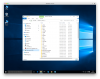
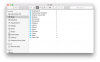
I have Windows 10 Pro installed on a virtual machine with Parallels. However, I do not get the Windows HD mounted on the Mac. I can, however, see the Mac filesystem from Windows.
  • Parallels Tools are installed (and re-installed)
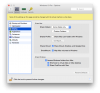
  • All sharing options are on (or I have tried them)
  • SmartMount is on
  • Share Windows is all on
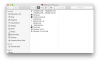
  • If I open terminal and cd to /Volumes, there is no Windows drive (there is on my other virtual machines)
  • This is my second installation of Windows 10
I've attached some screenshots to clear up the above.
Any ideas?

MacBook Pro | OS X (10.10.4)
Windows 10 Pro (updated with Windows update)
Parallels 10.2.2 (29105)
 

Attachments

  • Screen Shot 2015-08-10 at 17.24.12.png
    Screen Shot 2015-08-10 at 17.24.12.png
    115.5 KB · Views: 1
  • Screen Shot 2015-08-10 at 17.25.17.png
    Screen Shot 2015-08-10 at 17.25.17.png
    554.4 KB · Views: 1
  • Screen Shot 2015-08-10 at 17.25.45.png
    Screen Shot 2015-08-10 at 17.25.45.png
    227 KB · Views: 1
@JamesS3 please try the following steps:

1. deselect the virtual machine configuration window > Options > Sharing > Share Windows > Shortcuts to virtual disks on Mac desktop option.
2. Then go to the *.pvm file > Show Package Contents and move the Windows Disks folder to Trash and re-enable the option.

please provide us with the results.
 
@JamesS3 please try the following steps:

1. deselect the virtual machine configuration window > Options > Sharing > Share Windows > Shortcuts to virtual disks on Mac desktop option.
2. Then go to the *.pvm file > Show Package Contents and move the Windows Disks folder to Trash and re-enable the option.

please provide us with the results.
Hi Maria,
I don't see the "Windows Disks" folder... See attached
James
 

Attachments

  • Screen Shot 2015-08-14 at 10.27.31.png
    Screen Shot 2015-08-14 at 10.27.31.png
    92.8 KB · Views: 4
Please run disk repairing in Recovery HD:
1. Be sure your Mac is shut down.
2. Press the Power button.
3. Immediately after you hear the startup tone, hold the Option (alt) key. The Option (alt) key should be held as soon as possible after the startup tone, but not before the tone.
4. Release the Option (alt) key when you see gray icons and choose the "Recovery HD".
5. Run Disk Utility.
6. Verify and Repair disk.
7. Start Mac as usual and check the issue.
 
Back
Top