Parallels Tools Kills Windows 10 Insider Preview Build 15042

Running build 15048.

To install this build had to uninstall Parallels Tools first.

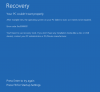
After reinstalling Parallels Tools go the DXGKRNL.SYS BSOD.

Wasn't able to fix directly using either of the options described here. However, managed to boot by ...
1) Booted into Safe Mode
2) Ran MSCONFIG
* Disabled both Parallels Services
4) Rebooted successfully in normal (not Safe) mode
5) Ran MSCONFIG
* Set/Checked "No GUI Boot" and "Base Video"
7) Rebooted in normal mode
8) Ran MSCONFIG
* Enables both Parallels services
9) Rebooted in normal mode
10) All seems OK for the present.

The above process may work without the step to disable Parallels services using MSCONFIG, but that didn't seem to work for me. That said, I realised after the fact that at first I hadn't't run MSCONFIG using Admin mode.


Thanks for the fix Peter, this solved my problem.
 
Same problem with 15055 build... parallels video driver thread error BSOD... Works fine with Microsoft simple video driver.
 
Running build 15048.

To install this build had to uninstall Parallels Tools first.

After reinstalling Parallels Tools go the DXGKRNL.SYS BSOD.

Wasn't able to fix directly using either of the options described here. However, managed to boot by ...
1) Booted into Safe Mode
2) Ran MSCONFIG
* Disabled both Parallels Services
4) Rebooted successfully in normal (not Safe) mode
5) Ran MSCONFIG
* Set/Checked "No GUI Boot" and "Base Video"
7) Rebooted in normal mode
8) Ran MSCONFIG
* Enables both Parallels services
9) Rebooted in normal mode
10) All seems OK for the present.

The above process may work without the step to disable Parallels services using MSCONFIG, but that didn't seem to work for me. That said, I realised after the fact that at first I hadn't't run MSCONFIG using Admin mode.
Thanks for the suggestion @PeterP , let us check the workaround in our lab and keep you updated.
 
Hi!
Same problem different solution for workaround...
  1. Boot into "Safe Mode"
  2. Open "Device Manager"
  3. Uninstall the "Parallels Display Adapter" - i removed installation files but this might not be necessary
  4. Reboot - Will start in low resolution - other parallels features are present though...
  5. Change resolution - you can get 1920x1200 which is workable for me...
This is clearly a parallels display driver bug! Parallels this is your ball to pick up...
/Peter
 
Running build 15048.

To install this build had to uninstall Parallels Tools first.

After reinstalling Parallels Tools go the DXGKRNL.SYS BSOD.

Wasn't able to fix directly using either of the options described here. However, managed to boot by ...
1) Booted into Safe Mode
2) Ran MSCONFIG
* Disabled both Parallels Services
4) Rebooted successfully in normal (not Safe) mode
5) Ran MSCONFIG
* Set/Checked "No GUI Boot" and "Base Video"
7) Rebooted in normal mode
8) Ran MSCONFIG
* Enables both Parallels services
9) Rebooted in normal mode
10) All seems OK for the present.

The above process may work without the step to disable Parallels services using MSCONFIG, but that didn't seem to work for me. That said, I realised after the fact that at first I hadn't't run MSCONFIG using Admin mode.

Thank you so much. Worked perfectly.
 
This worked for all builds
  1. Boot into "Safe Mode"
  2. Open "Device Manager"
  3. Uninstall the "Parallels Display Adapter" - i removed installation files but this might not be necessary
  4. Reboot - Will start in low resolution - other parallels features are present though...
  5. Change resolution
Tracking down issue, and it is 100% parallels display driver.
No symbols, so can't say what function fails in driver it self, but seems that opens 17 threads and 18 thread throws BSOD during driver init phase.
 
This worked for all builds
  1. Boot into "Safe Mode"
  2. Open "Device Manager"
  3. Uninstall the "Parallels Display Adapter" - i removed installation files but this might not be necessary
  4. Reboot - Will start in low resolution - other parallels features are present though...
  5. Change resolution
Tracking down issue, and it is 100% parallels display driver.
No symbols, so can't say what function fails in driver it self, but seems that opens 17 threads and 18 thread throws BSOD during driver init phase.
This doesn't work for me. The highest resolution with the default Windows driver is 1920x1200 but the scaling is stuck at 200%. Is there a way to not have to UI scale?
 
I set my system to Base Video and No Gui Boot, but it still reverts unless i uninstall Parallels tools. Help!
Parallels, the whole purpose of using VMs is to try new OS versions, and it is up to you to support them!

Make sure you check the, "Make all boot settings permanent" option when selecting the base video.
 
same problem here - "Insider Preview Build" crashes after Parallel Tools Installation.
Workaround is working, but will there be a final solution?
 
Is anyone from the Parallel's support team going to acknowledge this issue? It's easy to reproduce. Can you at least confirm that this is a known issue and a fix is coming. Maybe even supply an ETA. Using the Windows 10 default video driver is not a valid work around. Web browsing is broken when flash or active x components are included on the web page and scaling is a complete mess.
 
Have the same issue with the latest build of windows 10 (15063), i use macbook pro retina 15" early 2013 and parallels 12.1.3
Uninstall the "Parallels Display Adapter (WDDM)" in Device Manager allow windows to restart ok but with low resolution.
If I install Parallels tools, windows failed to start with the error like screenshot.Screen Shot 2017-03-25 at 23.43.56.png
 
Back
Top