arm64 ISO and VHDX images?

KolbeK

Bit poster
Any pointers to arm64 ISO or VHDX images to try?

I downloaded ubuntu-20.04.1-live-server-arm64.iso (https://ubuntu.com/download/server/arm), but Parallels tells me:
The specified image cannot be used because your Mac is equipped with the Apple M1 chip that doesn't support Intel-based operating systems.
Please use an ISO or VHDX image file with an ARM-based operating system.

I was able to get it installed by manually creating a VM and attaching the .iso.

Has anyone had success with other images?
 
I've used the Ubuntu desktop iso and the Fedora 33 net-install iso to install the workstation packages. Same issue with both, but got them to work by manually creating the VM.
 
Hello,
Yes, indeed, at the momen a manual installation is required (otherwise the images are incorrectly detected as x86). To perform it, please follow the steps below:

1. Open Parallels Desktop. Click New > Install Windows or another OS from a DVD or image file > Continue > Choose Manually > Continue without a source > Continue > Ok > Continue > Create.

2. Open the virtual machine's Configuration: click Parallels icon || > Control Center > right click on the virtual machine > Configure.

3. Click Hardware > CD/DVD > Source and browse to the installation .iso

4. Switch back to the virtual machine's Window and in the top menu click Actions > Reset.

5. Virtual machine shall boot from the installation image and let you proceed with installing the OS.
 
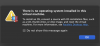
Hi, what should be done in order to install Parallels desktop 16 M1 Mac correctly?
It shows an error message 'no operating system installed'.
I've also selected 'macOS' as operating system ... did I have to choose for example windows 10 instead?
Where/how can I find and select the right image (vhdx or iso)?
 

Attachments

  • Schermafbeelding 2020-12-17 om 21.49.19.png
    Schermafbeelding 2020-12-17 om 21.49.19.png
    92.9 KB · Views: 130
I was able to do this but when I got to the end of a default install (meaning defaults selected) at the end when you select reboot, the ISO is unmounted but the VM doesn't actually reboot. I had to issue a reset -- when I did this the installed OS booted up fine. I expected it to reboot when I selected reboot at the end of the install.
 
Hello,
Yes, indeed, at the momen a manual installation is required (otherwise the images are incorrectly detected as x86). To perform it, please follow the steps below:

1. Open Parallels Desktop. Click New > Install Windows or another OS from a DVD or image file > Continue > Choose Manually > Continue without a source > Continue > Ok > Continue > Create.

2. Open the virtual machine's Configuration: click Parallels icon || > Control Center > right click on the virtual machine > Configure.

3. Click Hardware > CD/DVD > Source and browse to the installation .iso

4. Switch back to the virtual machine's Window and in the top menu click Actions > Reset.

5. Virtual machine shall boot from the installation image and let you proceed with installing the OS.
Hi Nikolai,
It seems some ARM64 ISOs are crashing the app. I followed these stops for Debian net install and DVD iso with the ARM versions obvisouly but these crash during initial startup. Same with Manjaro ARM ISOs
 
For the ISOs that are crashing - try removing the Sound & Camera option in VM Config > Hardware > Sound & Camera > click the - button underneath the row on the left. I was successful at loading Debian and OpenSUSE after removing Sound & Camera.
 
has anyone got a desktop iso working yet?

Absolutely! Debian, OpenSUSE and Fedora are all working fine. You just have to remove the Sound & Camera option in the VM Config before you boot.
Choose Manually, tick the "Continue without a source" button. Choose the Linux version you're planning to use (for Alpine, I had to choose "More Linux > Other Linux Kernel 2.6"). Tick the "Custom settings before installation" option and create. Click the "Hardware" tab, select "Sound & Camera", click the "-" button underneath to remove it. Select "CD/DVD" and change the source to your downloaded .iso image. Close that window. Start the VM and it should run through the installation normally.
 
Absolutely! Debian, OpenSUSE and Fedora are all working fine. You just have to remove the Sound & Camera option in the VM Config before you boot.
Choose Manually, tick the "Continue without a source" button. Choose the Linux version you're planning to use (for Alpine, I had to choose "More Linux > Other Linux Kernel 2.6"). Tick the "Custom settings before installation" option and create. Click the "Hardware" tab, select "Sound & Camera", click the "-" button underneath to remove it. Select "CD/DVD" and change the source to your downloaded .iso image. Close that window. Start the VM and it should run through the installation normally.

thanks very much. I managed to get ubuntu working by installing server then desktop on top. I'll give Debian & fedora another go
 
Hi, what should be done in order to install Parallels desktop 16 M1 Mac correctly?
It shows an error message 'no operating system installed'.
I've also selected 'macOS' as operating system ... did I have to choose for example windows 10 instead?
Where/how can I find and select the right image (vhdx or iso)?

anyone any idea?
 
CentOS Stream 8 aarch64 does not boot. I get the grub menu with the install / check DVD, but whatever option I pick, I return to that menu, there is no boot from the ISO.
 
Replying to myself: issue is not with Parallels, but with CentOS & RHEL, which requires 64K pages, and it is not supported by the M1 yet. Fedora is good (4k pages).
 
I am total newbie. I use 2 windows programs for work, can anyone give me a link to the windows version I have to download please.
 
[QUOTE = "NikolaiS @ Parallels, post: 878441, member: 6710798"] Ciao,
Sì, in effetti, al momento è necessaria un'installazione manuale (altrimenti le immagini vengono erroneamente rilevate come x86). Per eseguirlo, segui i passaggi seguenti:

1. Apri Parallels Desktop. Fai clic su Nuovo> Installa Windows o un altro sistema operativo da un DVD o un file di immagine> Continua> Scegli manualmente> Continua senza una fonte> Continua> Ok> Continua> Crea.

2. Apri la configurazione della macchina virtuale: fai clic sull'icona Parallels || > Centro di controllo> fai clic con il pulsante destro del mouse sulla macchina virtuale> Configura.

3. Fare clic su Hardware> CD / DVD> Sorgente e accedere al file .iso di installazione

4. Tornare alla finestra della macchina virtuale e nel menu in alto fare clic su Azioni> Ripristina.

5. La macchina virtuale verrà avviata dall'immagine di installazione e ti consentirà di procedere con l'installazione del sistema operativo. [/ QUOTE]
Si confermo che facendo così sono riuscito anche io a far partire Ubuntu. Grazie
 
Back
Top