
Install the app
How to install the app on iOS
Follow along with the video below to see how to install our site as a web app on your home screen.
Note: This feature may not be available in some browsers.
You are using an out of date browser. It may not display this or other websites correctly.
You should upgrade or use an alternative browser.
You should upgrade or use an alternative browser.
MattPackwood
Member
Let me know when we have an image!!!!

Dmitry Geynisman
Parallels Team
Hey guys, please use the following instructions for setting up a Chrome OS Flex VM in Parallels Desktop 17 (on Intel-based Macs!):
Let me know whether the instructions work for you!
- Open Parallels Desktop Installation Assistant.
- Select "Install Windows on another OS..." and click "Continue."
- Click "Choose Manually" > check the option "Continue without a source" and click "Continue."
- In the dropdown select Other > Chromium OS > click "OK".
- Check the option "Customize settings before installation" and click "Create."
- Navigate to Hardware tab > set 4096 MB of memory.
- Select Graphics settings on the sidebar > set "Auto" in the dropdown.
- Select Mouse & Keyboard on the sidebar > set the mouse option to "Optimize for games."
- Scroll down the sidebar with options and select Boot Order > check "External device" and move it to the top.
- In the dropdown "External boot device," select the USB device you have prepared.
- Close the configuration window and click "Continue."
- Always allow Parallels Desktop to access the USB device.
Let me know whether the instructions work for you!
Dmitry Geynisman
Parallels Team
Hey @KevinC25, would please try the following and let me know if it helps?Thanks, Dmitry!
I've made a few attempts to install without success on a 2017 5K iMac.
In each case, it boots from the USB drive, displays the Chrome logo, and then hangs on a white screen. Any suggestions would be appreciated.
- Shut down the VM.
- Locate the VM in Finder > right click > Show Package Contents
- Open config.pvs in Text Edit
- Locate the video settings, and set the value in <Type></Type> to 1. Please see the attached image.
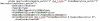
Then save & close, and start the VM. Please let me know if it helps.
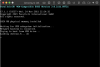
It doesn't help for me (MacBook A1502), os load stuck on chrome logoHey @KevinC25, would please try the following and let me know if it helps?
View attachment 19244
- Shut down the VM.
- Locate the VM in Finder > right click > Show Package Contents
- Open config.pvs in Text Edit
- Locate the video settings, and set the value in <Type></Type> to 1. Please see the attached image.
Then save & close, and start the VM. Please let me know if it helps.
Hi, @Dmitry@Parallels --
I opened config.pvs as you described, set the video <type> to 1, and it still hangs on a white screen after the Chrome logo.
Removing NativeScalingInGuest_patch="" from the first <Video> block allows it to boot to the Welcome to CloudReady 2.0 screen, but I don't seem to be able to click the Get Started button on that screen.
I opened config.pvs as you described, set the video <type> to 1, and it still hangs on a white screen after the Chrome logo.
Removing NativeScalingInGuest_patch="" from the first <Video> block allows it to boot to the Welcome to CloudReady 2.0 screen, but I don't seem to be able to click the Get Started button on that screen.
@Dmitry@Parallels -- following up on my last post, it seems the Chromium VM isn't picking up my mouse and keyboard. I've tried each of the settings under the Mouse and Keyboard drop-down lists in the VM settings without success.
I wonder if it's possible that it's failing because I have Bluetooth mouse and keyboard on this iMac. I can try again with wired input devices.
I wonder if it's possible that it's failing because I have Bluetooth mouse and keyboard on this iMac. I can try again with wired input devices.
Dmitry Geynisman
Parallels Team
Dmitry Geynisman
Parallels Team
@KevinC25, thanks for the confirmation. Even tabulation with the keyboard doesn't work? Doesn't mouse cursor appear when you enable "Optimize for gaming"?To answer my own last speculation, the behavior is the same (freezing at "Welcome to CloudReady 2.0" screen) when a wired mouse and keyboard are connected.
@Dmitry@Parallels -- my report ID is 391466381
Tabbing with the keyboard doesn't change the focus selection on screen. A mouse pointer is displayed, but it doesn't move, and I can't click anything.
Best,
-Kevin
Tabbing with the keyboard doesn't change the focus selection on screen. A mouse pointer is displayed, but it doesn't move, and I can't click anything.
Best,
-Kevin
Patrick Mast
Junior Member
Does it work on a Mac with M1 processor?
Dmitry Geynisman
Parallels Team
No, Chrome OS requires an "Intel or AMD x86-64-bit compatible device", please see requirements here https://support.google.com/chromeosflex/answer/11552529?hl=en&ref_topic=11551271.Does it work on a Mac with M1 processor?
Dmitry Geynisman
Parallels Team
Thanks, @KevinC25, I will pass this to engineers for investigation.@Dmitry@Parallels -- my report ID is 391466381
Tabbing with the keyboard doesn't change the focus selection on screen. A mouse pointer is displayed, but it doesn't move, and I can't click anything.
Best,
-Kevin
Hi @Dmitry@Parallels !
I would like to join in, my report ID being 391509245 - for me, the issue appears similar to the one @VITEX is experiencing: The VM boots up, shows the message "Loading vmlinuz.A... ok", and a moment later it automatically reboots.
I may add that I have tried two different thumb drives so far. Both of them are working fine with a physical machine. Trying to boot another VM with those thumb drives within Parallels results in the same(?) boot cycle.
Any hints are highly appreciated! Thank you very much in advance!