Installed upgrade --> lost Internet on VM. Help!

  • Thread starter Thread starter Parallels User
  • Start date Start date
P

Parallels User

>>> Message has been deleted by the user <<<
 
Last edited by a moderator:
Hello Theseeker,

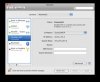
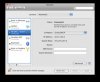
Please check Parallels NAT port status. For this you should go to Mac -> System Preferences -> Network, Show: Network Status. If Parallels NAT port is red, Show: Parallels Host-Guest and choose Off for Configure IPv4, click Apply. Then choose Using DHCP and click Apply again. After that Show: Parallels NAT and repeat the steps with Off and DHCP.

Best regards,
Xenos
 
Xenos,

Sorry to say but your suggestion does not work on my system. Both Parralles' entries in Network prefs are shown green and active, but both have false IP addresses along with the error message that a self-assigned IP address is in use.
 
theseeker,

Try the suggestion from the other thread. It did restore the network for me:

Open the Terminal application and paste this command: sudo killall -hup pvsnatd

Press return. Check in Network prefs to see if you now have a valid IP address.
 
Last edited by a moderator:
Hello all,

Yes you can try sudo killall -hup pvsnatd command.
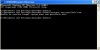
To find out the reason why internet connection is lost for you, we need more information. For example, a screenshot of cmd window after you have run
tracert www.parallels.com command is always helpful. To open cmd window click Start -> Run, type cmd, press Enter.

Best regards,
Xenos
 
>>> Message has been deleted by the user <<<
 

Attachments

  • CMD Window.jpg
    CMD Window.jpg
    18.1 KB · Views: 23
  • Parallels NAT.jpg
    Parallels NAT.jpg
    11.9 KB · Views: 24
  • Host-Guest.jpg
    Host-Guest.jpg
    12 KB · Views: 15
Hello Seeker,

Thank you very much for the screenshots. Could you provide us with some additional data for analysis?

Please attach the output of ifconfig command run in Mac’s Terminal (/Applications/Utilities/).

And we would also like to see the output of these commands run in cmd window:

ipconfig /renew
ipconfig /flushdns
ipconfig /all


Best regards,
Xenos
 
Seeker, thank you for the output. You seem to have some problems with your network adapter.

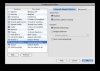
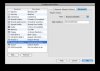
Please check if you have Network adapter in your VM Configuration Editor. We would like to see the screenshot.

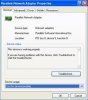
Could you also make a screenshot of Device Manager in Windows? Start -> Control Panel -> System -> Hardware -> Device Manager. Please open Network adapters.

Best regards,
Xenos
 
>>> Message has been deleted by the user <<<
 

Attachments

  • Network Adaptor.jpg
    Network Adaptor.jpg
    15.2 KB · Views: 19
  • Network Adaptor-Advanced.jpg
    Network Adaptor-Advanced.jpg
    14.5 KB · Views: 17
  • Win Adaptor-General.jpg
    Win Adaptor-General.jpg
    13.1 KB · Views: 16
  • Win Adaptor-Advanced.jpg
    Win Adaptor-Advanced.jpg
    10.2 KB · Views: 14
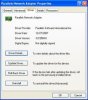
  • Win Adaptor-Driver.jpg
    Win Adaptor-Driver.jpg
    14 KB · Views: 14
Hello all,

Seeker, your screenshots let us see that Windows does not see network card. To improve this try the following:

1. Uninstall Parallels Tools and restart VM;
2. Open Control Panel -> System -> Hardware -> Device Manager. Open the list of Network adapters and uninstall Parallels network adapter (right click the icon and choose Uninstall);
3. Shut down Windows and go to Configuration Editor. Remove Network Adapter;
4. Launch Windows and wait for a while to let Windows renew drivers;
5. Shut down Windows and go to Configuration Editor. Add Network Adapter;
6. Launch Windows and make sure that Parallels network adapter is back again;
7. Reinstall Parallels Tools.

Mpmusicny, Doctor_X and Adam_dragoon, are you sure that you are exactly in the same situation? Please check carefully using the information provided by Seeker.

Best regards,
Xenos
 
Hello,

Doctor_X, did you install any 3rd party drivers in your VM?

Seeker, to uninstall Parallels Tools just click Actions -> Uninstall Parallels Tools on Parallels Desktop menu bar.

Best regards,
Xenos
 
Back
Top