Vista RC1 and 1896.2 Install For Dummies

Aero Glass, to my knowledge, requires 3D accelleration. Currently, Parallels doesn't emulate or pass-through 3D, so it's a no-go.

Under Boot Camp, you're not emulating anything, and Windows has access to the bare hardware, so it can do 3D.
 
Thanks for the reply. Vista is real "eye candy" in Boot Camp. It is however, a very complex OS and not very intuitive at all. Not much prgress on that front. Any idea if Parallel is considering 3D Acceleration as a release candidate?
 
Shut Down Button is Sometimes A Shutdown Button

I'm not sure in which cases it is, but you might dig through all those menus (as I did) to find that the button is sometimes configured for shutdown instead of sleep.

I'm running build 5600 on a mac mini. Others have had their button default to sleep with the same configuration: http://forums.parallels.com/post23539-12.html
 
Fans running full-blast

I am running build 1922 on my MacBook (black, 2GHz, 2GB RAM, OS X 10.4.8). I put the Vista hard disk image on an external Firewire hard drive (used the default 16GB size) and gave 1024MB of RAM to the VM. I have performance options favoring the VM. I've tried leaving it on for about 6 hours before rebooting it, and it has been on for another 90 minutes or so since the last reboot. So far, everytime I have the Vista VM running, the fans in my MacBook are running full-blast. If I run XP, the fans are normal (usually only kick in if I try and play video in XP), but for Vista they come on pretty much as soon as Vista starts booting and don't turn off. Any ideas?

Otherwise, Vista runs fantastic in this build of Parallels. I've been able to browse the Internet with IE7 and I have Office 2007 running running great. We'll see how it holds up over time.

--Andrew
 
Not true with builds 1920 and 1922. Don't know about previous builds though. The trick is to make sure the parallel tools are installed using Win XP compatibility mode. If you just do a normal install, you will only see the time syn and clipbooard modules .. The rest won't install.

So I had the problems of shared folders not working too in Vista RC1. But turns out to be a install procedure error .. which was not documented in the pdf files, but only in the forum.


xochi said:
Some other Vista Tips:

Shared Folders don't work.
To share files, do this:
  • On your Mac, turn on Windows sharing (System Preferences/Sharing)
  • Inside Vista, go to My Computer, then hit the Alt key, and choose "Map Network Drive".
  • Enter your mac's IP address
  • You may need to click the "Log in with different user" link to change user/password
 
robinchee said:
So I had the problems of shared folders not working too in Vista RC1. But turns out to be a install procedure error .. which was not documented in the pdf files, but only in the forum.

Well, not exactly. Sharing using the network mapping system, to my understanding, is distinct from the sharing folders feature that Parallels provides. They are two separate methods to share files and one of them, the bonus Parallels way, isn't currently working.
 
aangel said:
Well, not exactly. Sharing using the network mapping system, to my understanding, is distinct from the sharing folders feature that Parallels provides. They are two separate methods to share files and one of them, the bonus Parallels way, isn't currently working.

Well, the Parallels way is working for me .. in both 1920 and 1922 with Mac OSX 10.4.8 on a iMac Core 2.
 
Hi, robinchee.

Are you saying that you are using the shared folder feature in Vista (not the map network drive method described in post #26)? If so, then I'm confused: why did you re-print the mapping tip ("Shared Folders don't work")? If you have a way to get shared folders to work, by all means, please dish.
 
aangel said:
Hi, robinchee.

Are you saying that you are using the shared folder feature in Vista (not the map network drive method described in post #26)? If so, then I'm confused: why did you re-print the mapping tip ("Shared Folders don't work")? If you have a way to get shared folders to work, by all means, please dish.

Yes. Basically, the Parallels shared folder did not work for me at first. Initially I just installed the Parallels tools the normal way and that did not work. In order for it to work,
- you need to cancel the auto install,
- go to D drive and find the parallels tool program. (Open folder to view files)
- right click on "PrlTools" and choose the properties to be compatible with Win XP.
- then double click on "PrlTools" to install.
- just say yes to all the questions about installing.
- once u do it this way, u will be able to see the shared folders thing in the parallels tools.

This is not documented in the normal instructions but was in the first post in this thread.

install Parallels Tools & Drivers
After Vista has installed and finished booting,
From the Mac "VM" menu, choose "Install Parallels Tools". Do NOT click "Install/Run PrlTools".
Instead, click "Open folder to view files"
Right click "PrlTools", choose "Properties, and click the "Compatability" tab.
Select "Run this program in compatability mode for Windows XP (Service Pack 2)"
Click OK, then double-click PrlTools to run it.
Choose all the default installation options, and click "Install this driver" to any messages asking for permission.
Restart Vista when it asks.
 
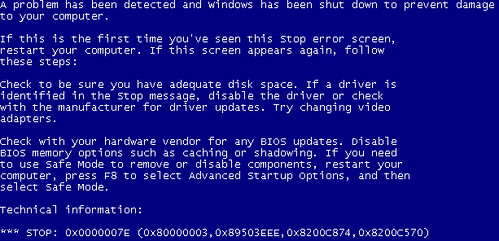
I'm running into this same issue.

"*** STOP: 0x000000A5 (0x00010000B, 0x50434146, 0xFFD01050, 0x0000000) "

What is the solution?
 
Internet connection

Hi everyone
I'm running Vista RC1 on the latest Parallels. Every thing is ok except Internet connection. PrlTolls installed compatible with Win XP and sharing folders works corrcectly.
- I can send mails but can not receive any
- Internet Explorer can fetch ONLY www.google.com and any words searched within, but never another site !!:confused:
Any suggestion ?
 
xochi said:
How To Install Vista (RC2 or later) under Parallels (1940 or later)
Note: These instructions appear to work for the newest version of Vista (5744) and Parallels (1940).

Things you will need
  • An Intel Mac with a minimum of 1Gig of RAM
  • At least 10Gigs of free hard drive space (about 3 gigs for the Vista ISO, and about 6 for the basic Vista install)
  • The Vista Installation ISO file
  • A valid Vista Product Activation key
  • Parallels build 1940 or later

Download and Install Parallels

Get the Vista RC2 installation ISO.
You will need a valid product activation key, which you can get by registering w/microsoft. If you have a Vista Beta 2 product key, this will work.
  • NOTE: MS has pulled the RC2 download page, so these instructions which were for RC1 may or may not still work


    Configure a new VM in Parallels
    • Create a new VM in Parallels. Choose the "Windows Vista" settings. Note: Re-using an old VM is not recommended, since it may not have the right settings. Let the wizard create a new one for you to be safe.
    • Click the "CD/DVD-ROM 1" link. Click "Use Image File" on the "Emulation" section. Click the "..." button, and then drag the ISO to that window to select it.
    • For better performance, I recommend that you make one additional change: Click "Options" at the top of the window, then click the "VM Flags" tab, then change "Choose virtual hard disk cache policy..." to "Mac OS X". This may slow down the install a little, but it makes your Mac much more useable in the mean time.
    • Click OK, then the Play button, and Vista will boot.
    • Install as per the onscreen instructions.

    install Parallels Tools & Drivers
    After Vista has installed and finished booting,
    • From the Mac "VM" menu, choose "Install Parallels Tools". Do NOT click "Install/Run PrlTools".
    • Instead, click "Open folder to view files"
    • Right click "PrlTools", choose "Properties, and click the "Compatability" tab.
    • Select "Run this program in compatability mode for Windows XP (Service Pack 2)"
    • Click OK, then double-click PrlTools to run it.
    • Choose all the default installation options, and click "Install this driver" to any messages asking for permission.
    • Restart Vista when it asks.

    To verify that your installation went well
    • Click the VM window -- your mouse should flow between the VM window and the rest of your mac. If the mouse gets "stuck" in the window, the Mouse driver didn't install.
    • Right click the desktop, and choose "Personalize", then click "Display Settings". It should say "Generic non PnP Monitor on Parallels Video Driver". If it doesn't say "Parallels Video Driver" then the video driver didn't install.
    • Try to browse the internet using Internet Explorer. If it works, then your network driver is fine.

    Notes
    • Upon first boot, Vista does a bunch of hard drive indexing which can use 100% of the CPU and cause the machine to act sluggish. Let it run for a few hours and it should finish these tasks and then start performing better.
    • The installation takes about 6Gigs -- this is an improvement over Vista Beta 2 which took about 9 gigs.

    I hope this is helpful!

    Please add any additional Instructions / Tips to this thread.


  • The install went very smooth no problems here. Here is a screen shot
 

Attachments

  • Vista_Parallels.jpg
    Vista_Parallels.jpg
    245.3 KB · Views: 10
Last edited:
I'm having the same STOP error issue:
354463463_e3ba7d4e9d.jpg


Any solutions yet?
 
Back
Top