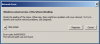
The problem with Windows 7 unable to access
\\Mac\Home\Desktop has been resolved by downgrading to Parallels Desktop Version 17.1.5 using the steps outlined below
(given to me by Parallels Support through an email). My other VMs work fine with the downgrade. The only alteration to the procedure below was that - when I completed all steps - I went back into
System Preferences > Security & Privacy > Privacy > Full Disk Access and
unchecked full disk access for Parallels Desktop App.
Hope this helps
1. Shut down all your Windows/Ubuntu Virtual Machines
Click Actions > Select Shut Down.
2. Enabled full disk access for Parallels Desktop App
Open System Preferences > Security & Privacy > Privacy > Full Disk Access > Put a checkmark for Parallels Desktop App.
3. Downgraded Parallels Desktop from 18.0.2 to 17.1.5.
Quit Parallels Desktop App > Right-click the Parallels Desktop Icon on your Dock > Select Quit Parallels Desktop App.
Open Finder > Select Applications Folder > Look for Parallels Desktop App > Right-click > Move to Trash
Open Trash Bin > Look for Parallels Desktop App > Right-click > Delete Immediately.
Restart macOS Computer.
Install Parallels Desktop 17.1.5 > Click this link:
https://www.parallels.com/products/desktop/download/ . > Select version 17 > Click the DMG Automatic Installer > Proceed with the installation.
4. Manually install Parallels Tools.
Start/Open your Windows 7 Virtual Machine
Click (2) red vertical lines on your mac menu bar > Select Devices > Choose CD/DVD > Connect Image > Select Applications Folder > Look for Parallels Desktop App > Contents > Resources > Tools > Choose "prl-tools-win.iso" then click OPEN.
Inside the Windows 7 > Open File Explorer > This PC > Right-Click DCD/CD Parallels Tools > Select Open in New Windows > Right Click PTAgent > Choose "Run as Administrator". Continue installing Parallels Tools and restart after it is done installing.