
Install the app
How to install the app on iOS
Follow along with the video below to see how to install our site as a web app on your home screen.
Note: This feature may not be available in some browsers.
You are using an out of date browser. It may not display this or other websites correctly.
You should upgrade or use an alternative browser.
You should upgrade or use an alternative browser.
Win10 Boot Camp won't boot in Parallels
- Thread starter ThomasC9
- Start date
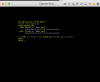
I'm having similar issue and similar computer configuration. Error splash screen is same as ThomasC9 and also getting error that Parallels can't find operating system.
I've been working on this problem for a month. My data sent in Technical report 230702842. Need a fix soon. Thanks for helping.
I've been working on this problem for a month. My data sent in Technical report 230702842. Need a fix soon. Thanks for helping.
Now for weeks many users report the same problem. The Parallels team gives several possible solutions but nothing works. It looks like the developers of Parallels are already on Christmas holiday. How long do we have to wait for the right solution? I think you loose many customers.

Hemnath@Parallels
Parallels Support
Hi calaska. Please disable the EFI setting for the virtual machine and let us know what happens next.Error splash screen is same as ThomasC9
Any ETA regarding a fix for this issue?
Folks, the developers are working on this at present. We don't have an ETA, but a fix will be released as soon as possible. Sorry for the time being taken, and your patience is much appreciated.How long do we have to wait for the right solution?
Hemnath@Parallels, I did as you suggested and ended up with computer stalling with this splash screen.
I've been down this rabbit hole before following various suggestions in the Parallels knowledge database and community blogs.
I sent information to Parallels in technical report 231907412.
I've been down this rabbit hole before following various suggestions in the Parallels knowledge database and community blogs.
I sent information to Parallels in technical report 231907412.
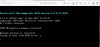
I have the same issue. Just bought a new iMac and nothing mentioned on the site it won't work with MacOS 10.13.2. So bought int and installed it to use the Bootcamp partition. Well not that easy like they are writing on their site.
Same errors like mentioned in previous posts. I contacted support and they want a LogMeIn Remote session and they assume this will be fixed tonight when I have this session. I don't think that the support engineer know about this post however. Very strange like this problem is already a long time an issue. Bad that solving this issue takes so long time!
Same errors like mentioned in previous posts. I contacted support and they want a LogMeIn Remote session and they assume this will be fixed tonight when I have this session. I don't think that the support engineer know about this post however. Very strange like this problem is already a long time an issue. Bad that solving this issue takes so long time!
Today a support engineer have taken some technical data from my machine. It's being used to investigate the problem en hopefully it will be solved in the next build! We have to have some patience here...it's begin escalated to the next level of support. Keep you guys informed when I have more information...
Hi there support have been working on my pc for several times and my problem is solved. They told me it would be fixed the right way in the next update what will come. However it hasn't been told to me when the fix was deliverd. On December 26th they fixed my issue! Very glad and working a lot with Windows using Parallels!We've been waiting a month since last contact with Parallels. Has this problem been solved!?
Hemnath@Parallels
Parallels Support
Please follow these steps (which you might have done already, but just ensure whether those were done in the exact sequence described below):We've been waiting a month since last contact with Parallels. Has this problem been solved!?
1. Check whether Windows works properly within the boot camp partition natively - restart your Mac, hold down the 'Option' key as soon as you see the Apple logo screen, select the Windows partition in the following screen and boot the computer into the Windows platform.
2. If Windows works fine natively in the boot camp partition, navigate to Apple Icon -> System Preferences... -> Startup Disk and Finder -> Go -> Utilities -> Disk Utility and check if the boot camp partition appears in these two locations.
3. Remove the existing virtual machine [click on the Parallels Desktop icon in the Mac menu bar on the top (it looks like 2 red lines), select 'Control Center' from the menu that appears, right-click on where the existing virtual machine is shown within the Control Center window, select 'Remove' from the menu that appears and then select 'Move to Trash' in the window that appears], quit Parallels Desktop, launch it again and create a new virtual machine.
Last edited:
Please follow these steps (which you might have done already, but just ensure whether those were done in the exact sequence described below):
1. Check whether Windows works properly within the boot camp partition natively - restart your Mac, hold down the 'Option' key as soon as you see the Apple logo screen, select the Windows partition in the following screen and boot the computer into the Windows platform.
2. If Windows works fine natively in the boot camp partition, navigate to Apple Icon -> System Preferences... -> Startup Disk and Finder -> Go -> Utilities -> Disk Utility and check if the boot camp partition appears in these two locations.
3. Remove the existing virtual machine [click on the Parallels Desktop icon in the Mac menu bar on the top (it looks like 2 red lines), select 'Control Center' from the menu that appears, right-click on where the existing virtual machine is shown within the Control Center window, select 'Remove' from the menu that appears and then select 'Move to Trash' in the window that appears], quit Parallels Desktop, launch it back up and create a new virtual machine.
Hemnath@Parallels, I checked and Windows works properly within the boot camp partition natively. I tried to reinstall Parallels 13.2.0 (43213) and got this error.
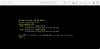
I now have the My Boot Camp shortcut to Parallels on my desktop and Parallels loaded into the Mac Library folder. When I navigated to Apple Icon -> System Preferences... -> Startup Disk I did not see a boot camp partition. I did see a boot camp partition in Finder -> Go -> Utilities -> Disk Utility but the partition was not mounted and owners were disabled.
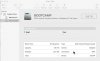
I also tried using vm.bios.efi=0 in Parallels settings. No luck. Any further suggestions?
I copied the instructions sent to me by a Parallels Customer Support Engineer
START
Here's the outline of the possible resolution.
1. Start Parallels Desktop and remove the existing Bootcamp virtual machine shell by right-clicking on its name and choosing Remove.
2. After that The Installation Assistant automatically suggests to use Bootcamp, so create a new shell and proceed further.
3. Right-click on the virtual machine name > Show in Finder.
4. Right-click on pvm file and choose Show Package Contents... note the presence of the .hdd file.
4. Then run Terminal ( Applications > Utilities > Terminal).
In the Terminal window start typing cd command and then drag and drop APPLE HDD ST3000DM001 (disk0).hdd file into the Finder window. The resulting command should look like this:
cd /Users/UserName/Parallels/My\ Boot\ Camp.pvm/APPLE\ HDD\ ST3000OM001\ \(disk1\).hdd
Of course, this might be slightly different in your case. Press Enter to execute the command.
Then execute the another command:
cp PhysicalMbr.hds{,.bak}&& xxd PhysicalMbr.hds.bak | sed -e 's/000001c0: ffff eefe ffff 0002/000001c0: ffff eefe ffff 0100/g' | xxd -r > PhysicalMbr.hds
5. Close the Terminal window and launch the virtual machine.
FINISH
Hope this works for you guys
START
Here's the outline of the possible resolution.
1. Start Parallels Desktop and remove the existing Bootcamp virtual machine shell by right-clicking on its name and choosing Remove.
2. After that The Installation Assistant automatically suggests to use Bootcamp, so create a new shell and proceed further.
3. Right-click on the virtual machine name > Show in Finder.
4. Right-click on pvm file and choose Show Package Contents... note the presence of the .hdd file.
4. Then run Terminal ( Applications > Utilities > Terminal).
In the Terminal window start typing cd command and then drag and drop APPLE HDD ST3000DM001 (disk0).hdd file into the Finder window. The resulting command should look like this:
cd /Users/UserName/Parallels/My\ Boot\ Camp.pvm/APPLE\ HDD\ ST3000OM001\ \(disk1\).hdd
Of course, this might be slightly different in your case. Press Enter to execute the command.
Then execute the another command:
cp PhysicalMbr.hds{,.bak}&& xxd PhysicalMbr.hds.bak | sed -e 's/000001c0: ffff eefe ffff 0002/000001c0: ffff eefe ffff 0100/g' | xxd -r > PhysicalMbr.hds
5. Close the Terminal window and launch the virtual machine.
FINISH
Hope this works for you guys
Looks like the second part of my message didn't make it. This should be added after Step 5.
START
After the confirmation that the virtual machine has launched successfully, create a backup of the resulting .hdd file and put in into the folder which contains the virtual machine file. This has to be done as the virtual machine settings are modified, the issue will re-occur. To fix it again, it's required to replace the .hdd file within pvm bundle with the backup one.
FINISH
START
After the confirmation that the virtual machine has launched successfully, create a backup of the resulting .hdd file and put in into the folder which contains the virtual machine file. This has to be done as the virtual machine settings are modified, the issue will re-occur. To fix it again, it's required to replace the .hdd file within pvm bundle with the backup one.
FINISH
This issue has plagued me for almost a year at this point, and NOTHING has resolved it (obviously), including the above Terminal command hack. First of all, considering all the people who have chimed in on this thread, WHY isn't there some sort of KB article on this by now at the very least? Like others, I've completely wiped and reinstalled EVERYTHING. 4 TIMES. ON MULTIPLE MACHINES. I'm still stuck with the following scenario:
- MacBook Air running 10.12.6 (yes I need to stick with 10.12, but it didn't work under 10.13 either)
- Parallels Desktop 13.3.2 for Mac Home Edition (fully up to date)
- A Windows 10 Pro (1709 or 1803 - I've tried both to no avail) Boot Camp installation that works perfectly fine on its own (when booted from the Boot Camp partition)
- Boot Camp partition/installation within a Parallels VM will NOT get past a Blue Screen 'Recovery' error that states:
= = = = =
Your PC/Device needs to be repaired
A required device isn't connected or can't be accessed.
Error code: 0xc000000e
You'll need to use recovery tools. If you don't have any installation media (like a disc or USB device), contact your PC administrator or PC/Device manufacturer.
= = = = =
After I 'Press Enter to try again', the error screen adds the following:
= = = = =
The application or operating system couldn't be loaded because a required file is missing or contains errors.
File: \WINDOWS\system32\winload.exe
Error code: 0xc000000e
= = = = =
TRUST ME when I say this is not a valid troubleshooting path to pursue - it's beyond even just a catch-22. What the heck is wrong and what do I do to fix this??? If I hadn't just bought a 'new' Parallels (13) license last year in hopes it would resolve the issue for this specific machine/purpose, I'd have just given up and switched to VMware Fusion. So sick and tired of this.
- MacBook Air running 10.12.6 (yes I need to stick with 10.12, but it didn't work under 10.13 either)
- Parallels Desktop 13.3.2 for Mac Home Edition (fully up to date)
- A Windows 10 Pro (1709 or 1803 - I've tried both to no avail) Boot Camp installation that works perfectly fine on its own (when booted from the Boot Camp partition)
- Boot Camp partition/installation within a Parallels VM will NOT get past a Blue Screen 'Recovery' error that states:
= = = = =
Your PC/Device needs to be repaired
A required device isn't connected or can't be accessed.
Error code: 0xc000000e
You'll need to use recovery tools. If you don't have any installation media (like a disc or USB device), contact your PC administrator or PC/Device manufacturer.
= = = = =
After I 'Press Enter to try again', the error screen adds the following:
= = = = =
The application or operating system couldn't be loaded because a required file is missing or contains errors.
File: \WINDOWS\system32\winload.exe
Error code: 0xc000000e
= = = = =
TRUST ME when I say this is not a valid troubleshooting path to pursue - it's beyond even just a catch-22. What the heck is wrong and what do I do to fix this??? If I hadn't just bought a 'new' Parallels (13) license last year in hopes it would resolve the issue for this specific machine/purpose, I'd have just given up and switched to VMware Fusion. So sick and tired of this.