Why does Parallels take up so much disk space?

MathiasN1

Bit poster
Hi!
So I've been wondering lately, why Parallels is taking up so much space.
When I check the space taken in MAC, it takes up almost 70GB of disk space.
When I check every file in my C:\ disk in windows, I only use 32,6 GB. I'm aware that parallels itself take up disk space. But if I recall when first installing Parallels, It wasn't close to 38GB?
What is taking up so much space, I only have one snapshot, and I have reclaimed all the disk space I can?

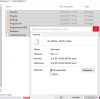
See the two uploaded files.
 

Attachments

  • Skærmbillede 2017-11-07 kl. 12.48.39.png
    Skærmbillede 2017-11-07 kl. 12.48.39.png
    229.8 KB · Views: 101
  • 23336577_10211997232824593_1338664301_o.png
    23336577_10211997232824593_1338664301_o.png
    74 KB · Views: 98
In Parallels Desktop if you go to Actions Configure it shows you a bar chart with space usage under the General Tab.
In the end I followed these instructions from another thread


1.) Free up disk space in Windows (use this article as a reference), shut Windows down and then reclaim disk space.
2.) Disable 'SmartGuard'.
3.) Launch Terminal (from the Finder menu, navigate to Go -> Utilities -> Terminal.app).
4.) Copy the following command and paste it in Terminal as it is (do not hit 'Enter' yet): prl_disk_tool merge --hdd
5.) Find your virtual machine on your Mac and ensure that there is a backup of this file available.
6.) Drag the .hdd file and drop it inside the Terminal window (do not close the screen in which you see the .hdd file yet; keep it open).
7.) In Terminal, you will now see an outcome similar to the following example (please note there should be a space between --hdd and /Users/Username...): prl_disk_tool merge --hdd /Users/Username/Documents/Parallels/Windows\ 7.pvm/Windows\ 7-0.hdd
8.) Press 'Return' to start merging Snapshots (this process removes all snapshots, including hidden ones). (Important: Please wait till the operation completes; do NOT close the Terminal window before then.)
9.) Once the operation finishes, close Terminal.
10.) Now, go back to the window in which you saw the .hdd file. Move the folder 'Snapshots' and the file 'Snapshots.xml' to the Trash. Then close this window.

It took about an hour but I ended up with a pvm file that is 88Gb instead of the previous 130+ Gb.
Alarmingly the available space on my hard drive shrunk from about 70Gb to about 20 Gb. After a momentary panic I remembered about local TM snapshots (I have two time machines, one off and one on site ). I deleted these and I now have 140Gb free space and am much relieved.
Yes i see this
 
Back
Top