Windows 8 Host -> Network adapter not detected

This is how I solved the problem

Installed VM Fusion 5 demo. Installed XP. updated to Windows 8, card does not work. Fixed card in VM Fusion 5 Windows 8 by doing this solution from their threads:

Find the Windows 8.vmwarevm file at Documents / Virtual Machines
Show Package Contents and open Windows 8.vmx file in Text Edit.
Enter after ethernet0.present = "TRUE":

ethernet0.virtualDev = "e1000e"

Save the file at the same location. Start your virtual machine. Card is present in Fusion 5.

Go in Parallels (I have 7), convert the VM Fusion 5 Windows 8. Networking is up and running in Parallels now. Did reboots, still works.
 
Last edited:
Sounds like a Firewall issue

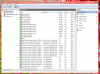
My firewall blocked prl_client_app.exe and then i had to unblock it for Internet access to be allowed.

Only second thing there is, is as a Windows Service, Parallels Services are not starting. Mine are as Local System and is running. Changes to this is accessible thru Task Manager (Ctrl-alt-delete).

last, is re-install the device driver of parallels virtual adapter in device manager. what the declared solution for other problems on Windows as been in the past frequently.

see pictures for help.
 

Attachments

  • parallels_blocked_by_firewall.png
    parallels_blocked_by_firewall.png
    284.6 KB · Views: 46
  • parallels_service_for_windows.png
    parallels_service_for_windows.png
    182.6 KB · Views: 41
And some positive news again: For some reason my general Windows network settings also started to have problems, so I ran the standard Windows network problem solver. After that, also Parallels worked again, and even after several restarts, it is still working.
 
Picture of Windows Firewall & Parallels not working

I got the error message again.
So I uninstalled and reinstalled.
I got the error message again.
I looked at the Windows Firewall and it did not look right. Picture is attached. The private setting is turned off for Parallels Workstation.
 

Attachments

  • parallels_windows_firewall_not_set.png
    parallels_windows_firewall_not_set.png
    103.3 KB · Views: 46
Added to Firewall but error message still shows

Hi

I did add to private for firewall. But the error message showed again. However, after I reboot it did not show and worked. It seems I have to reboot each time the message shows and then it would work.

Ajay
 
Temporary Fix

After much trial and error I've figured a temporary way of getting the network Adapter working within my virtual machine under my Win 8 host. I've had to resort to using Bridged mode for the adapter but failed to get the Shared or Host-Only adapters working, they seemed to site active with 0 packets received.

To get the bridged adapter working I have to start Parallels (but not the virtual machine), then within the Windows 8 host I go to my network adapters within Control Panel then disable and re-enable the PC's main Network interface, next I start/resume the Virtual machine (in my case Win XP SP3), and all works fine. If I don't restart the host PC network adapter before loading the virtual machine the adapter fails to connect and the VM network connection fails.
 
Thanks for detailled information. Have exactly the same problems on my Windows 8 Host: Directly after reinstalling Workstation 6 the network adapter show up correctly. When I reboot my Host, Workstation 6 no longer finds the network adapter.
Looking forward to your next post.
 
McAfee interference

I had the same problems. After I uninstalled McAfee Internet Security Whatever, all of my problems went away. Good riddance to pre-installed bloatware.
 
Unfortunately it looks like I spoke too soon because McAfee is gone and the problem has returned. Now, I don't know if Parallels working before was just coincidence with uninstalling McAfee.
 
Last edited:
this worked for me

turn the "unidentified" networks into "private" networks

Press Win+R, then type secpol.msc
Click on "Network List Manager Policies"
Double-click on your network
Click on "Tab Network Location"
Set "Location Type" to "Private"
 
unfortunately

no..unfortunately...every now and then you need to disable and enable the virtual network adapaters...to get it to work again...in some instances after resume from sleep..
 
I have same issue.
I tried Hyper-V, but it has a poor video resolution.

The only solution at this time is disable and reenable my physical network adapter before use Parallels ... I hope Parallels fix this issue as fast as possible.
 
I've had the same exact problem since installing Windows 8 and I may have found the solution to this problem. I did a search on the Parallels.com website and found this article: http://kb.parallels.com/en/5664 . It shows the IP range for the Shared Network setting in Parallels should be 10.211.55.1 - 10.211.55.254. However, in checking the Network settings in the Parallels Preferences, I found the default IP for the Network Sharing adapter to be 10.37.133.1 - 10.37.133.254. (I'm not positive about the "133" as I no longer have that setting, but in any event it is not the IP the Parallels KB article says it should be). I changed the IP range to that specified in the KB article and I no longer get the "network adapter not detected" and I have full network access, both LAN and WAN. I have rebooted my computer half a dozen times since making the IP change and I have had no problems. XP running in Parallels has full internet access now.
 
Microsoft Wifi Direct Virtual Adapter

I am not sure if everyone is having a slightly different issue here but with similar or identical symptoms.
I had the same error. But i think my issue is with the driver.

I am using Acer Aspire S7 and the wifi adapter that shows up in the host control panel is "Qualcomm Atheros AR5BMD222 ..." but the adapter that shows up in Parallels is "Microsoft Wifi Direct Virtual Adapter". I think i managed to have it working once (not sure how) and it was showing the correct Qualcomm adapter in parallels.

However i cant seem to get it back. When it shows MS DVA, it will say no network connected to the real adapter.

Really hope Parallels take a more active role is solving this network issue in Win 8. They seem to be waiting for us users to figure out what works. Am very tempted to move to VMware. What is holding me back now is that i have the whole working environment working when i was using it on Mac system. But since i moved to Win 8, i have not been able to do proper work and i never know when the network will work or not.

Am surprised there isnt more complaints. I think most parallels users are on Mac like how i started.
 
Hi MaveT,

I contacted Parallels directly shortly after the launch of Windows 8, and worked with several support technicians over the course of almost a month to try and solve this issue. It seems that the primary cause of this issue is the Parallels Networking driver not installing correctly (according to the technicians) due to compatibility issues with Windows 8. The last person I spoke with spent an hour connected to my laptop trying different things, and we hung up with it working. It continued to work for a couple of days, but then went back to not working. I was told that Windows 8 is not officially supported as a host OS, and that the technician was not aware of any information on if or when a fix would be offered. I am suspecting that Parallels will not fix it in this version of Workstation, and will release a new version within the next couple of months. I have since switched to VMware Fusion Professional (yes the Mac product) to fully license VMWare Player, as the full VMware Workstation is too expensive. I have to admit that the VMware products seem less polished than the Parallels products, but at least it works in Windows 8. Just a point of note, VMWare Player is unable to directly import a Parallels 6 VM, and you would need to either build a new one from scratch, or use the VSphere stand-alone conversion tool to build a new VM from Parallels as it is running. Good luck!

Rich S.
 
Same NIC issue after installing Win-8

I am having the same issue and tried everything suggested to no avail. I never had any problems with windows 7
I was foolish to upgrade.

The only solution for me is to downgrade as I have to get on with work and access the data remotely.

Please keep this forum posted if there is a solution or one becomes available
 
Back
Top